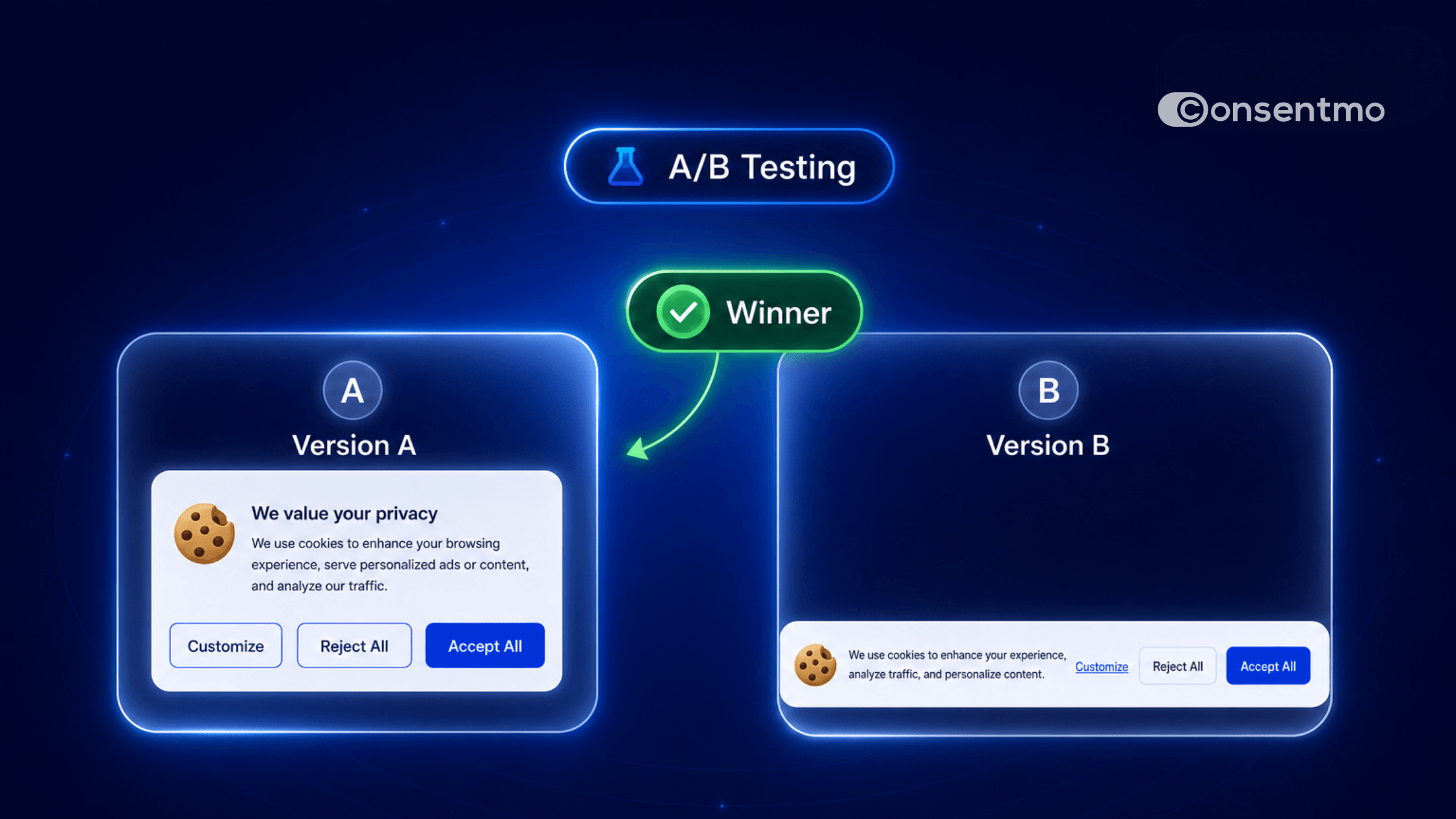
Test Two Banner Versions and Let the Winner Run Automatically
A/B Testing is now live in Consentmo. Instead of guessing which banner design gets more engagement, you can now run a real split test on your cookie banner, measure how each version performs with actual visitors, and let the data decide the winner. When the test ends, Consentmo automatically switches your store to the version that performed best. Here's what it does, how it works, and how to set it up in minutes.
What the A/B Testing Feature Does
Consentmo's A/B Testing feature lets you run a controlled experiment on your cookie banner's design and apply the winning version automatically. Everything is handled end to end, from splitting your traffic to emailing you the result:
- Test design, not content: Compare two visual versions of your banner (layout, position, colors, custom icon, border radius, and more). Behavior, regions, and content stay identical across both versions, so you're testing design only and your results stay clean.
- Pick your winning metric: Choose what defines success (interaction rate or acceptance rate). Consentmo measures both versions against the metric you select.
- A suggested challenger to start fast: Version 1 is always your current banner. Consentmo automatically pairs it with a different banner type to test against, so you don't have to build a variant from scratch.
- Configurable traffic split: Decide how visitors are divided between the two versions (50/50, 60/40, 70/30, or 80/20).
- Live results in Analytics: A brand-new A/B Testing tab shows your live split, the current leader, and exactly what you're testing at any moment.
- Full transparency in consent records: Every test logs the variant shown, the source, and the user's choice, just like your standard consent data.
- A winner always continues: When the test ends (typically two weeks from the start date), Consentmo emails you the winning version along with its confidence level, then automatically switches your banner to it.
Consentmo runs the split, tracks the performance, and applies the winner. You decide what to test and when to stop.
Important: Just like TCF, settings lock once a test starts, so you won't be able to edit the banner for the test duration. You can stop the test early at any time, in which case your banner defaults back to Version 1 (your current banner).
A Note on Compliance: A/B Testing and the GDPR
A/B testing is a powerful tool, but how you're allowed to use it depends on where your visitors are located. Consentmo serves merchants across many jurisdictions, so this feature supports a range of testing goals. The right way to use it differs by region.
⚠️ Important for stores serving EU/EEA visitors: Under the GDPR, consent must be freely given, specific, informed, and unambiguous. Designing or optimizing a cookie banner with the goal of increasing the acceptance rate can undermine the validity of that consent and may be treated as a deceptive or manipulative design pattern by EU regulators. For visitors in the EU/EEA, we strongly recommend using A/B Testing to evaluate design quality, clarity, and usability (for example, layout, position, and readability), rather than to maximize how many users accept. Optimizing for acceptance is generally not permissible in the EU/EEA. This is not legal advice; please consult your own legal counsel for your specific situation.
Merchants serving regions outside the EU/EEA may have more flexibility to test acceptance-based metrics, depending on local law. Always confirm what is permitted in the jurisdictions you serve.
How to Set Up an A/B Test
A/B Testing is available on the Enterprise plan. Here's how to set it up:
Step 1: Open A/B Testing
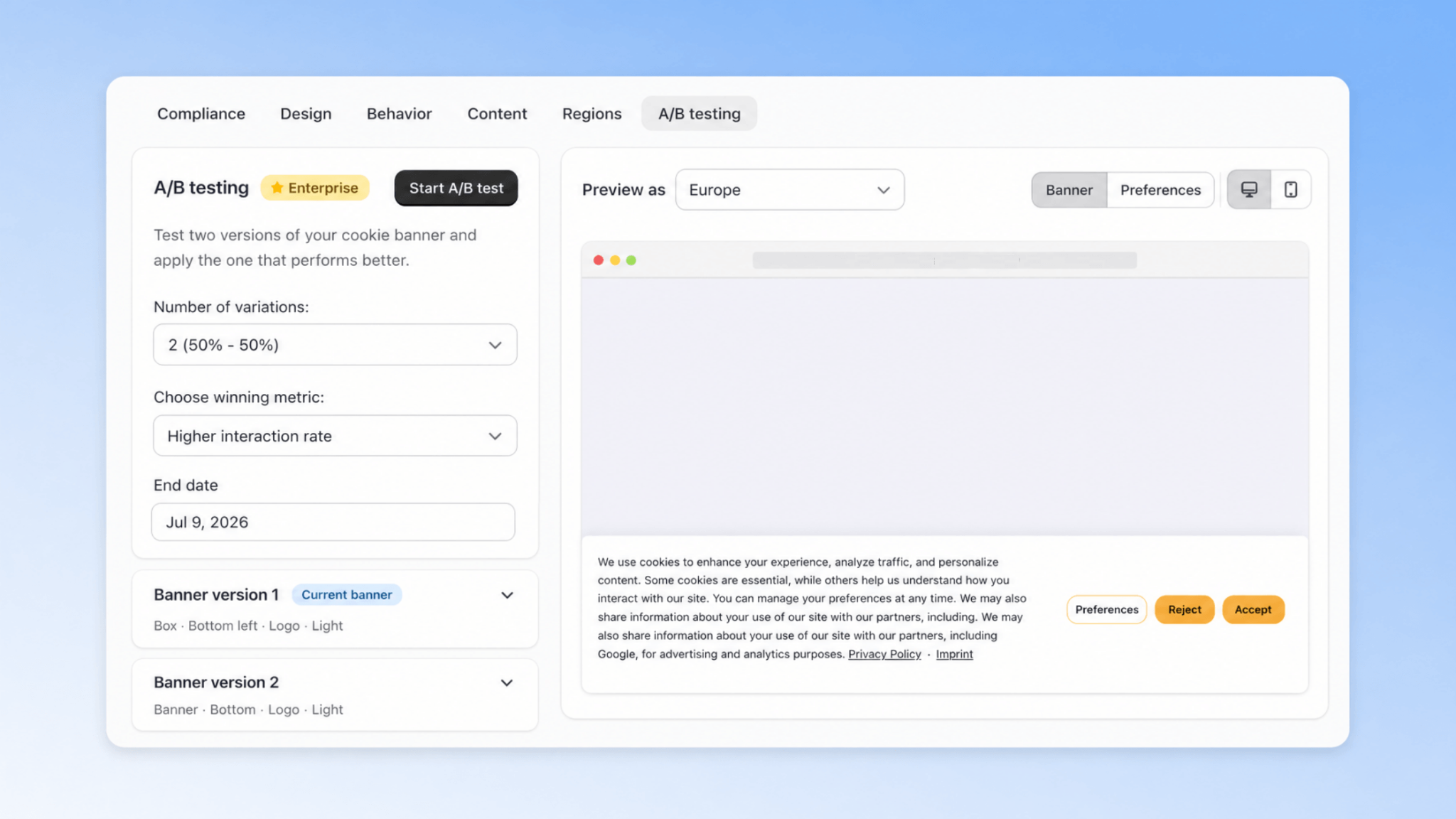
From your Consentmo dashboard, go to Cookie Banner settings and click the A/B testing tab.
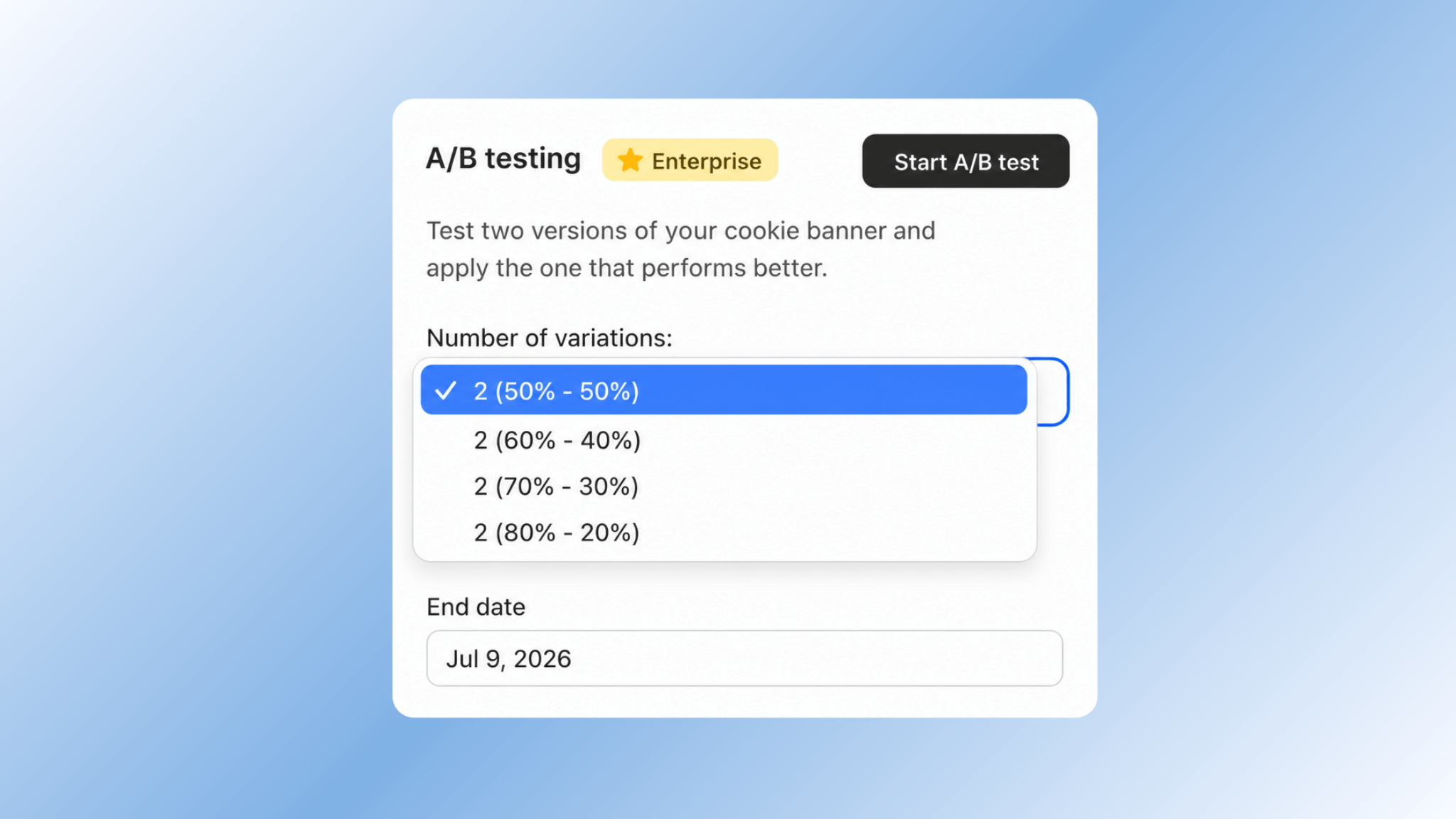
Step 2: Choose your traffic split
Under Number of variations, select how you want to divide your visitors between the two banner versions:
- 2 (50% – 50%)
- 2 (60% – 40%)
- 2 (70% – 30%)
- 2 (80% – 20%)
Step 3: Pick your winning metric
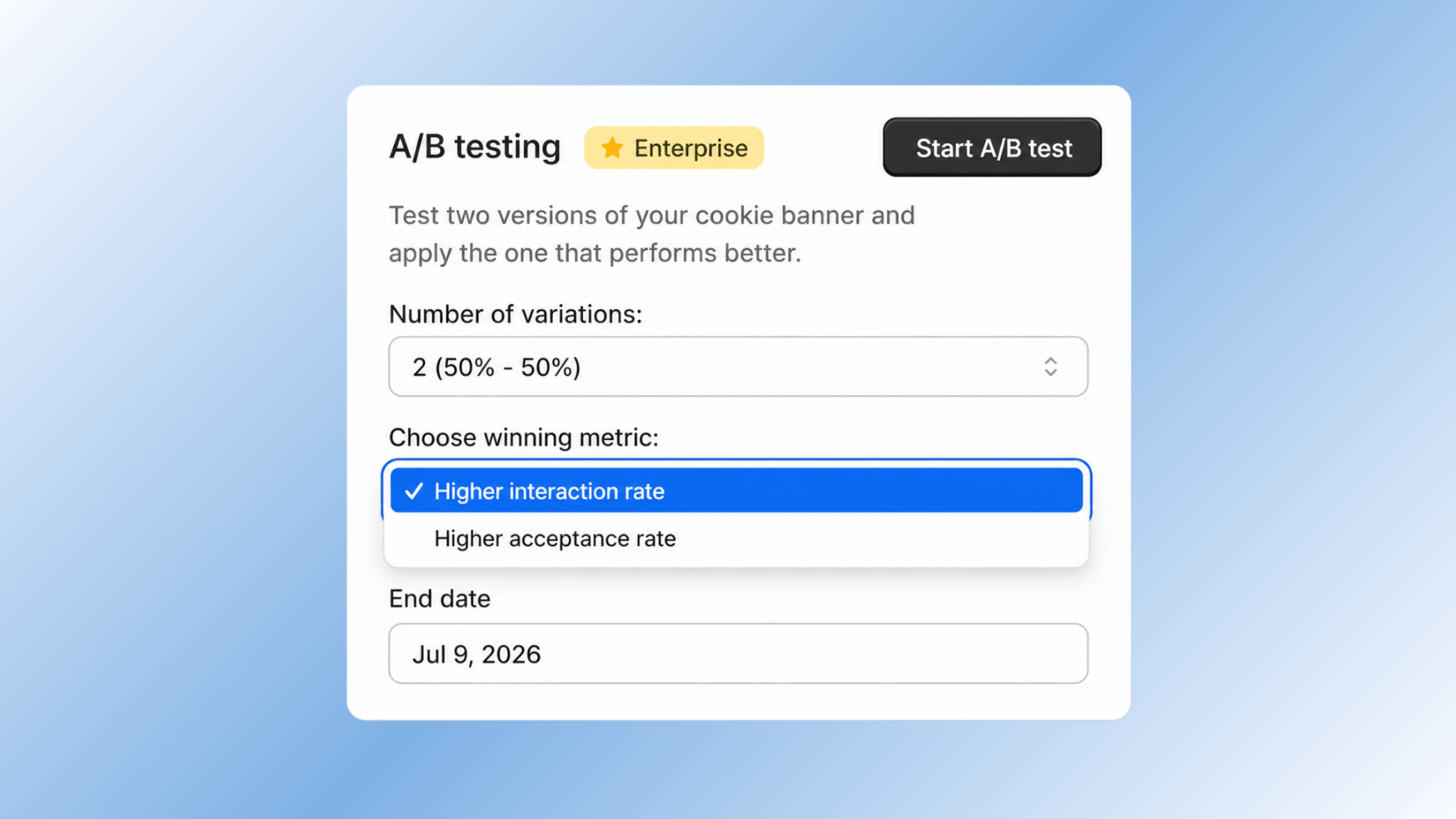
Under Choose winning metric, select what defines success for this test:
- Higher interaction rate (the version that gets more visitors to engage with the banner)
- Higher acceptance rate (the version that gets more visitors to accept)
Before choosing acceptance rate, review the compliance note above, especially if you serve EU/EEA visitors.
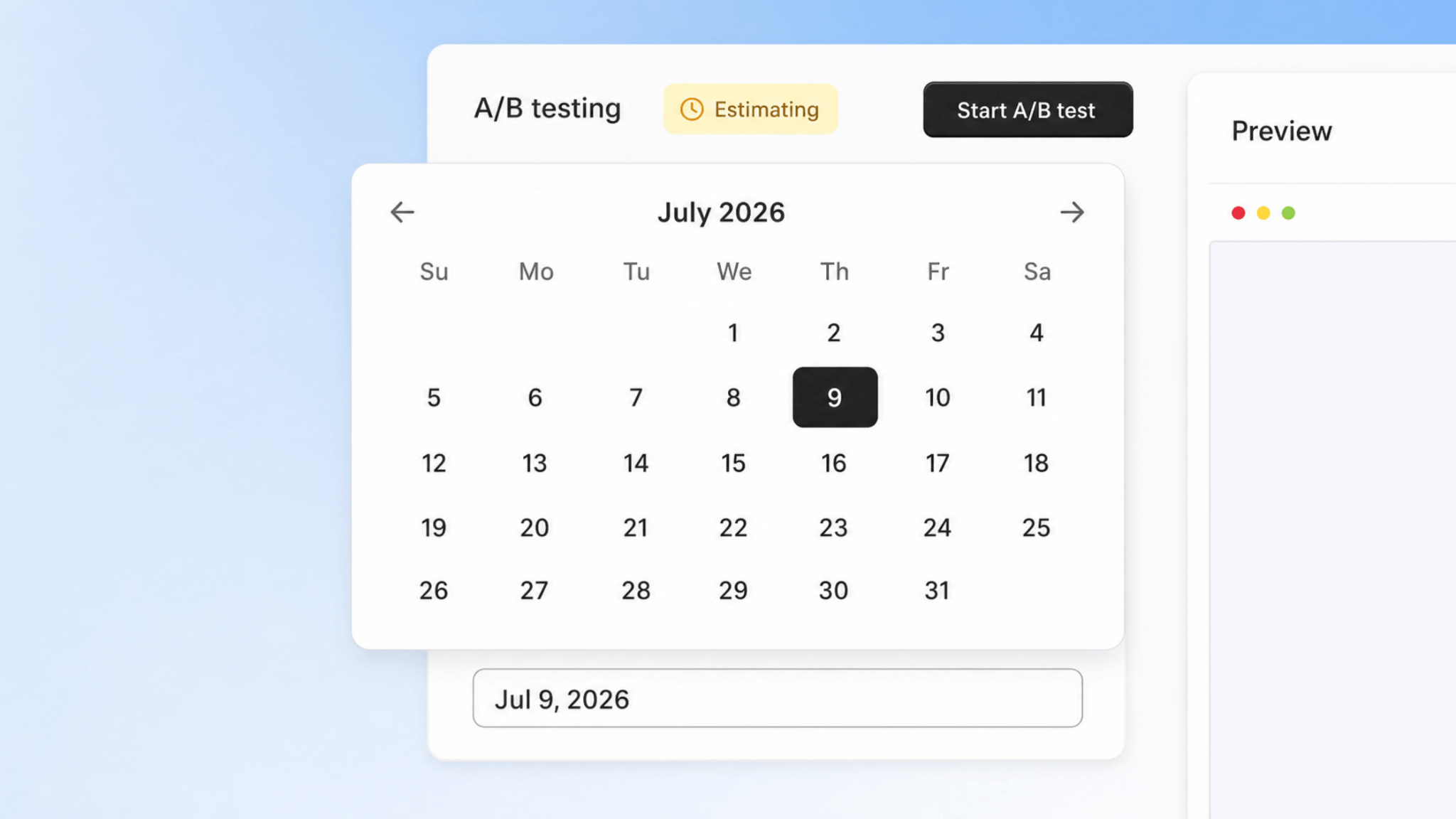
Step 4: Set your end date
Choose when the test should end. Tests typically run for two weeks from the start date, which gives Consentmo enough data to determine a confident winner. When the end date is reached, the winning banner's settings are applied automatically, as long as there's enough data.
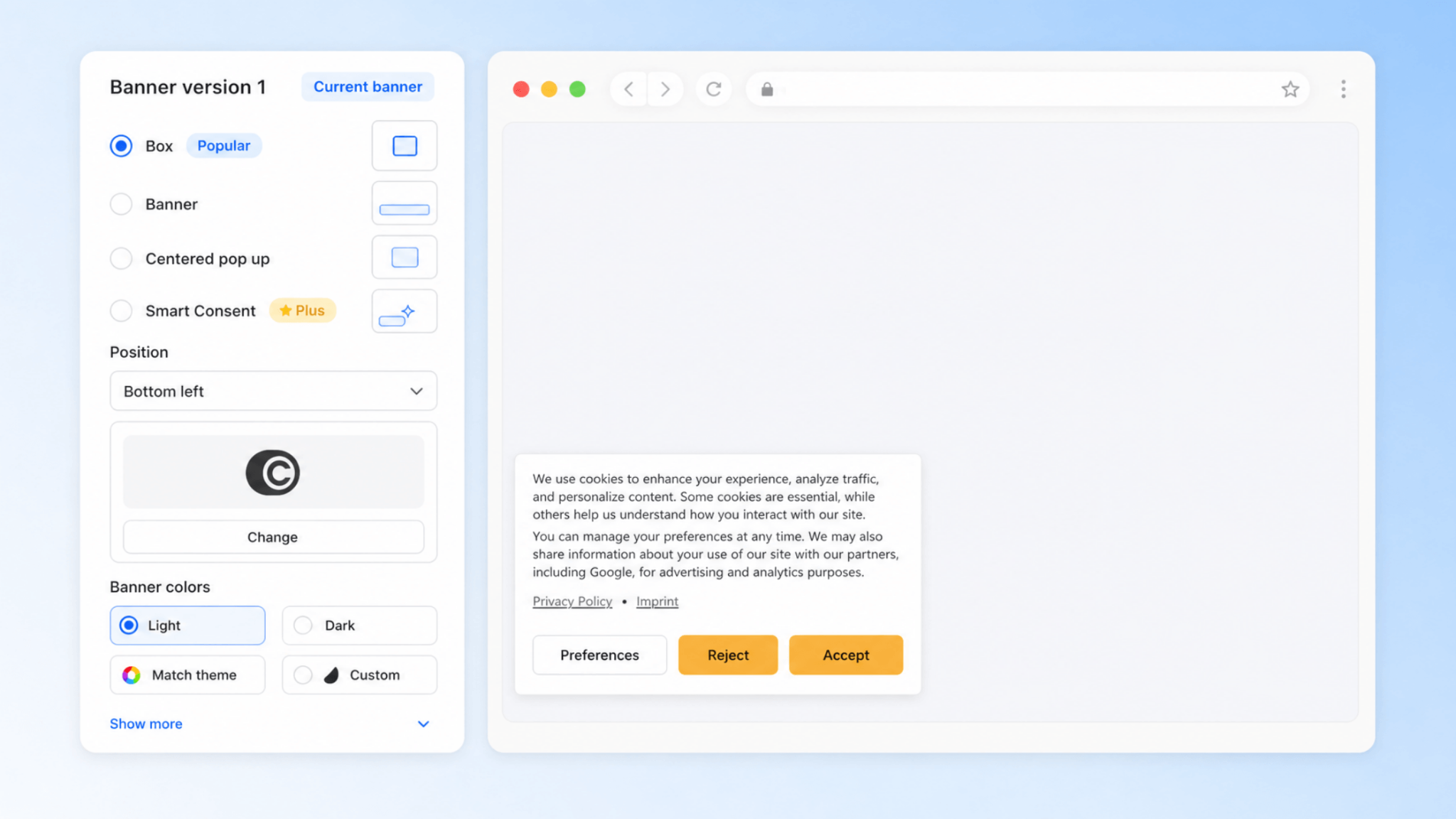
Step 5: Confirm Banner Version 1 (your current banner)
Banner version 1 is always your current live banner, marked with a Current banner label. You can expand it to review or adjust its design: banner type (Box, Banner, Centered pop up, or Smart Consent), position, custom icon, and banner colors (Light, Dark, Match theme, or Custom).
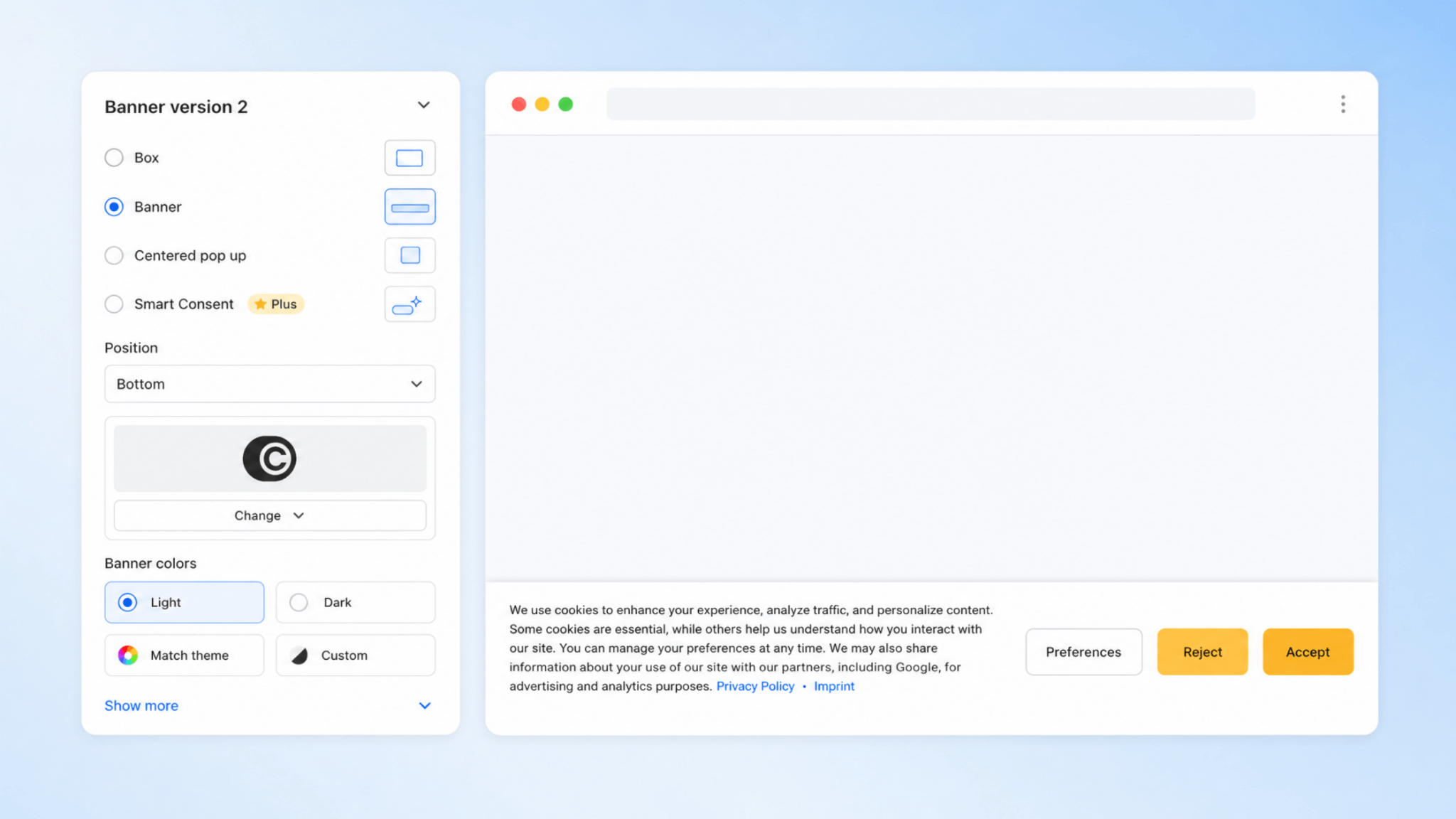
Step 6: Set up Banner Version 2 (your challenger)
Banner version 2 is the version you'll test against Version 1. Consentmo suggests a different banner type to start, but you can customize it fully: change the layout, position, icon, colors, and more. Remember, only the visual design should differ. Behavior, regions, and content stay the same across both.
Step 7: Start the test
Click the Start A/B test button in the top-right corner. Your two banner versions go live, traffic is split according to your settings, and the banner settings lock for the duration of the test.
That's it! Your store is now running a live A/B test on your cookie banner.
Tracking Your Test in Analytics
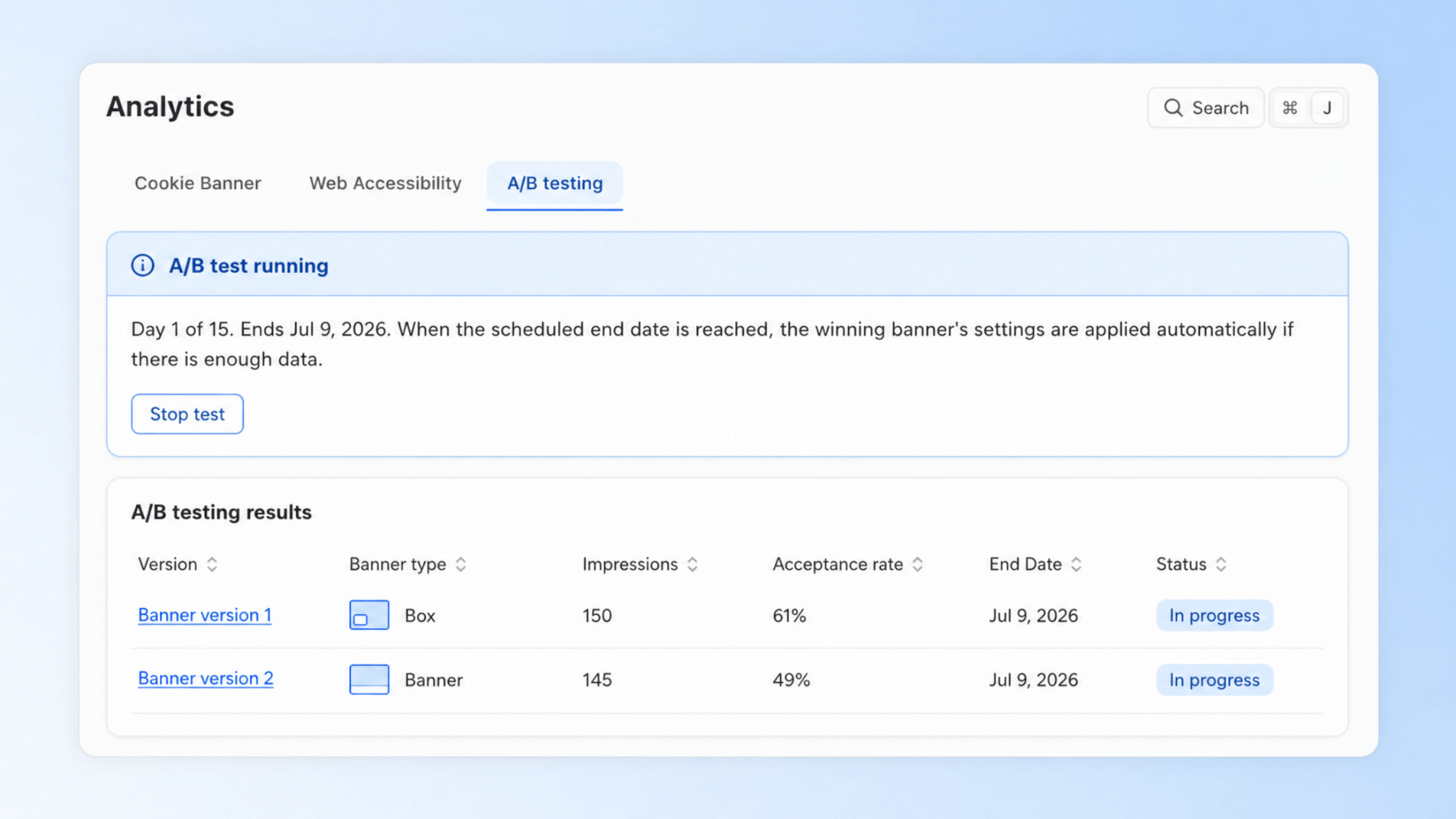
Once your test is running, head to Analytics > A/B Testing to watch it unfold in real time.
At the top, a status banner shows which day you're on, the scheduled end date, and a reminder that the winning banner's settings are applied automatically when the test ends (if there's enough data). You can also stop the test early here at any time, in which case your banner reverts to Version 1.
Below that, the A/B testing results table breaks down live performance for each version:
What Happens When the Test Ends
When your scheduled end date is reached:
- Consentmo identifies the winning version based on your chosen metric.
- You receive an email with the winning version and its confidence level.
- The winning banner's settings are applied automatically to your store, as long as there was enough data to call a result.
If you stop the test early, your banner simply defaults back to Version 1, your original current banner. Either way, you always end up with a live, working banner, with no gaps and no guesswork.
Start Your First A/B Test Today
A/B Testing is included in the Enterprise plan, with no additional setup required before you enable it. Find it under your Cookie Banner settings, and track performance in Analytics > A/B Testing.
Start an A/B test in Consentmo →
If you're on a Free, Standard, or Plus plan, upgrade to Enterprise to access this feature.