EU Withdrawal is now live in Consentmo. If your Shopify store sells to customers in the EU, this feature gives you the dedicated page, footer button, and guided request flow that EU consumer law requires. Here's what it does, what the law says, and how to turn it on in minutes.
What the Withdrawal Contract Feature Does
Consentmo's EU Withdrawal feature adds a structured, end-to-end withdrawal flow to your Shopify store. Instead of customers emailing you or searching for a vague "returns" link, they get a clear, legally worded process with every step handled:
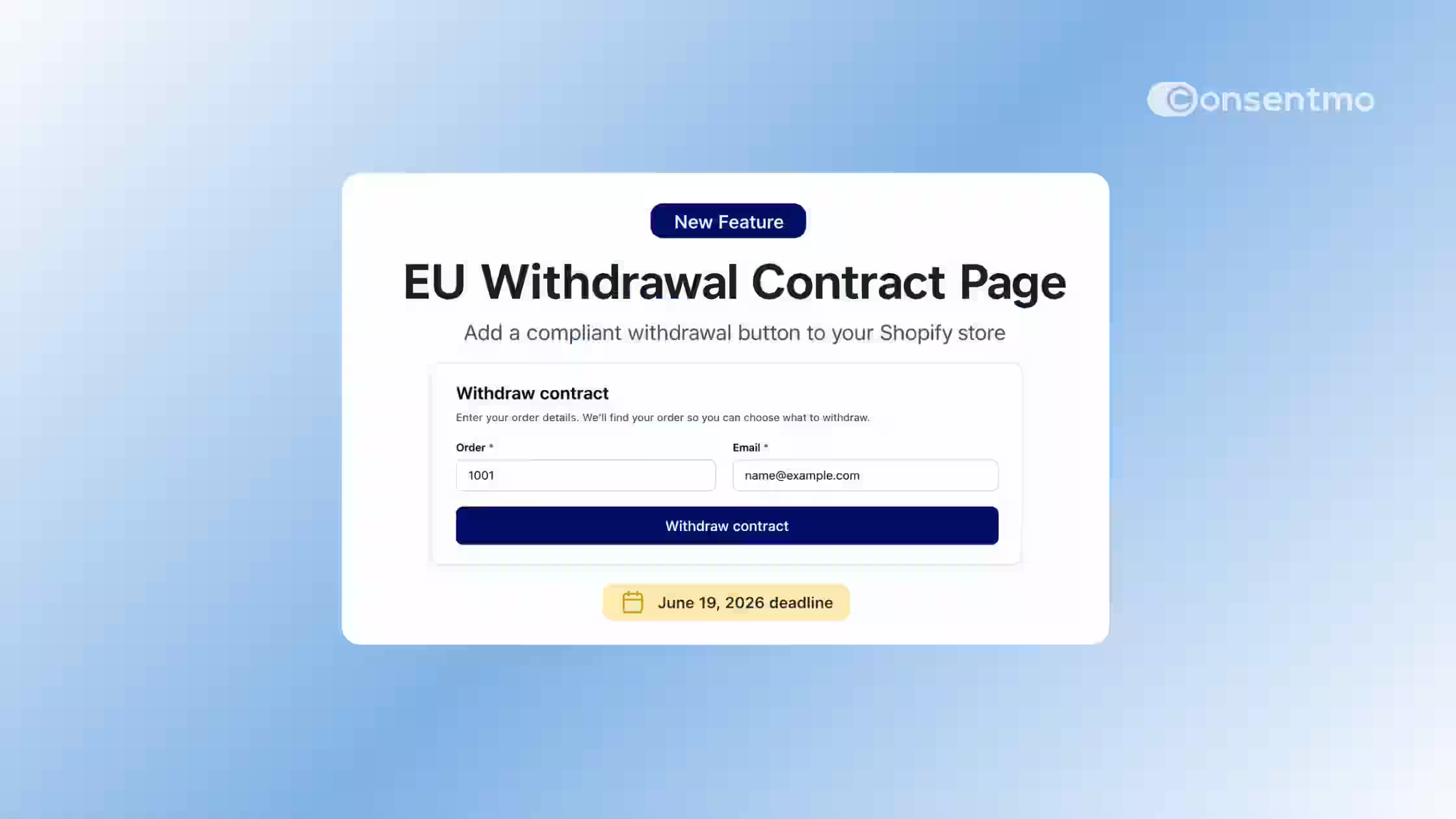
- Withdrawal page: A dedicated, customer-facing page where buyers can submit a withdrawal request without logging in. The page uses the wording "Withdraw contract" and "Confirm withdrawal," which is what the law requires.
- Footer link: A "Withdraw contract" link is automatically added to your store footer so EU customers can always find it, regardless of where they are in their purchase journey.
- Order Status page button: A "Withdraw contract" block is embedded directly on Shopify's Order Status page, so customers can start a request from the exact order they want to withdraw.
- Two-step verification flow: Customers enter their order number and email, verify their identity, review matched order items, select what they want to withdraw, and confirm. No account login needed.
- Automatic confirmation emails: Once a request is submitted, both the customer and the merchant receive a confirmation email with the request details and a unique reference ID.
- Request records: Every withdrawal request is logged with a received timestamp, order number, selected items, customer email, and reference code. Records can be exported as CSV at any time.
Consentmo collects, verifies, and documents the request. You stay in control of eligibility, refunds, and final processing.
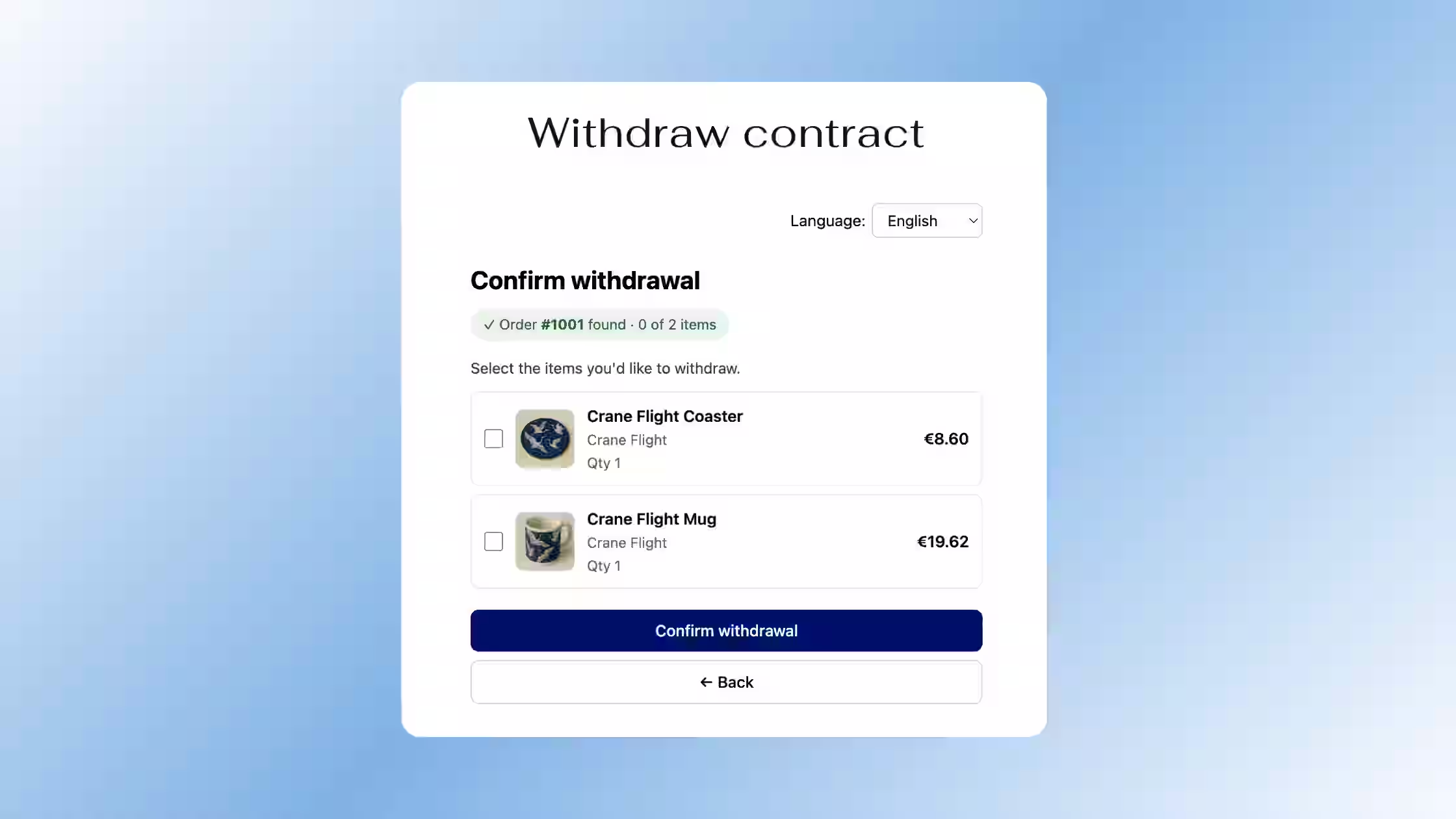
The Law Behind It: Directive 2023/2673
EU Directive 2023/2673 requires that, from 19 June 2026, online merchants selling to EU consumers must provide a clear, visible electronic means for buyers to withdraw from a purchase. This means a dedicated button or link that:
- Is accessible without the customer needing to log in
- Uses direct, unambiguous wording (not "Cancel," "Return," or "Undo")
- Initiates a structured withdrawal process that documents the request
The standard withdrawal window is 14 days after delivery. If a merchant fails to provide this mechanism, the withdrawal period can be extended to up to 12 months and 14 days. In some EU member states, merchants may also face legal warnings or fines of up to 4% of annual turnover.
Consentmo's EU Withdrawal feature is built around these exact requirements: the wording, the no-login access, the documented flow, and the 14-day window are all built in by default.
Looking for a deeper breakdown of the legal requirement? Read our blog here →
How to Enable It in Consentmo
EU Withdrawal is available on the Plus and Enterprise plans. Here's how to set it up:
Step 1: Open EU Withdrawal
From your Consentmo dashboard, go to Privacy Center and click the EU Withdrawal page tab.
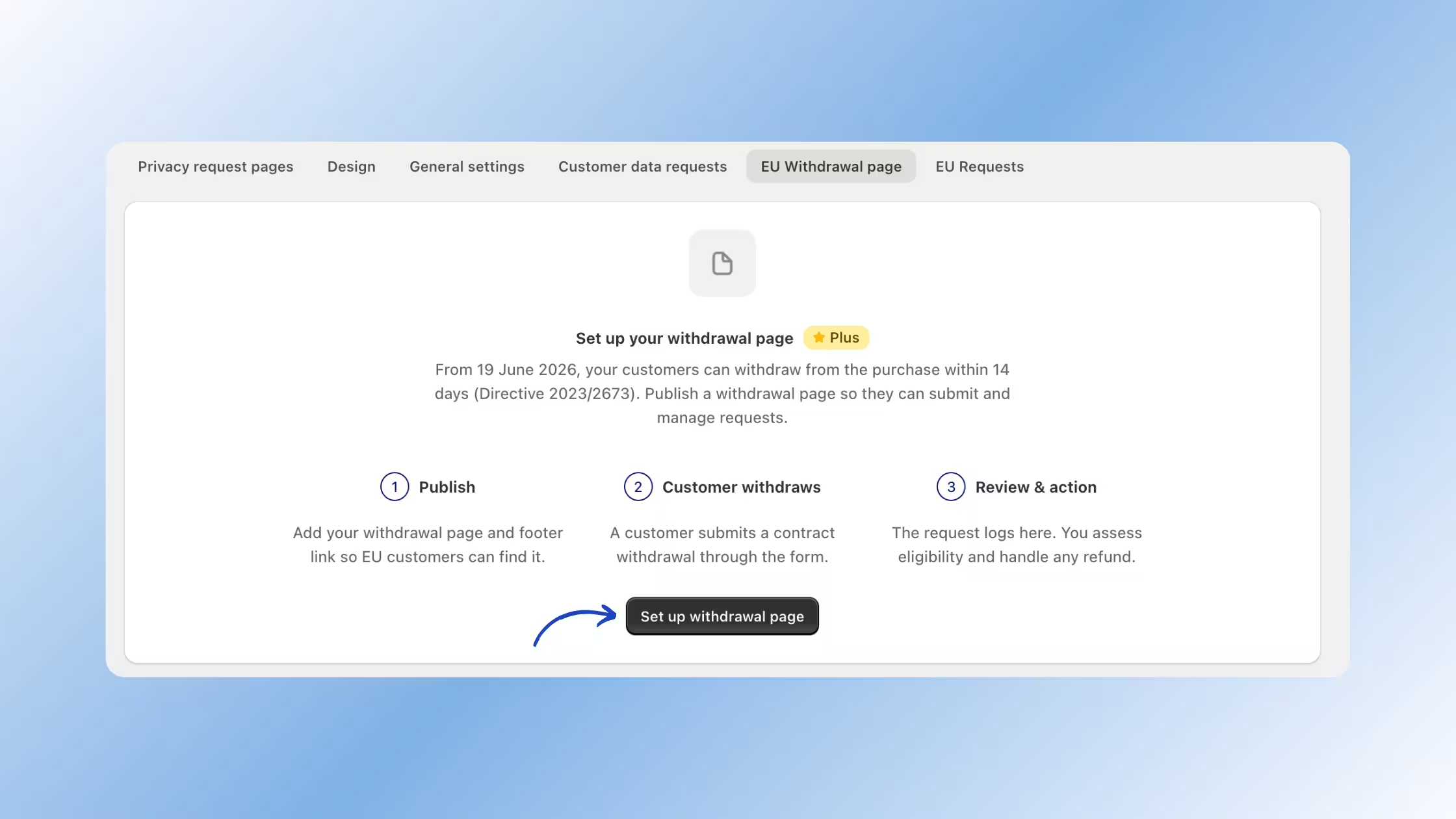
Step 2: Set up your withdrawal page
Click "Set up withdrawal page." This opens the withdrawal page editor.
Step 3: Configure your page settings
In the Withdrawal form tab, you can:
- Set your page URL slug (e.g.,
/withdraw-contract) — this can only be set on first publish - Choose which footer menu the link is added to
- Adjust the link text, form title, and intro line
- Toggle the customer Name field on or off
- Set your withdrawal window (14 days is the EU standard)
- Customize page colors and button styles
_converted.avif)
Step 4: Customize your emails
Click the Emails tab to edit the subject line, body text, and button text for the verification email sent to customers when they submit a request.
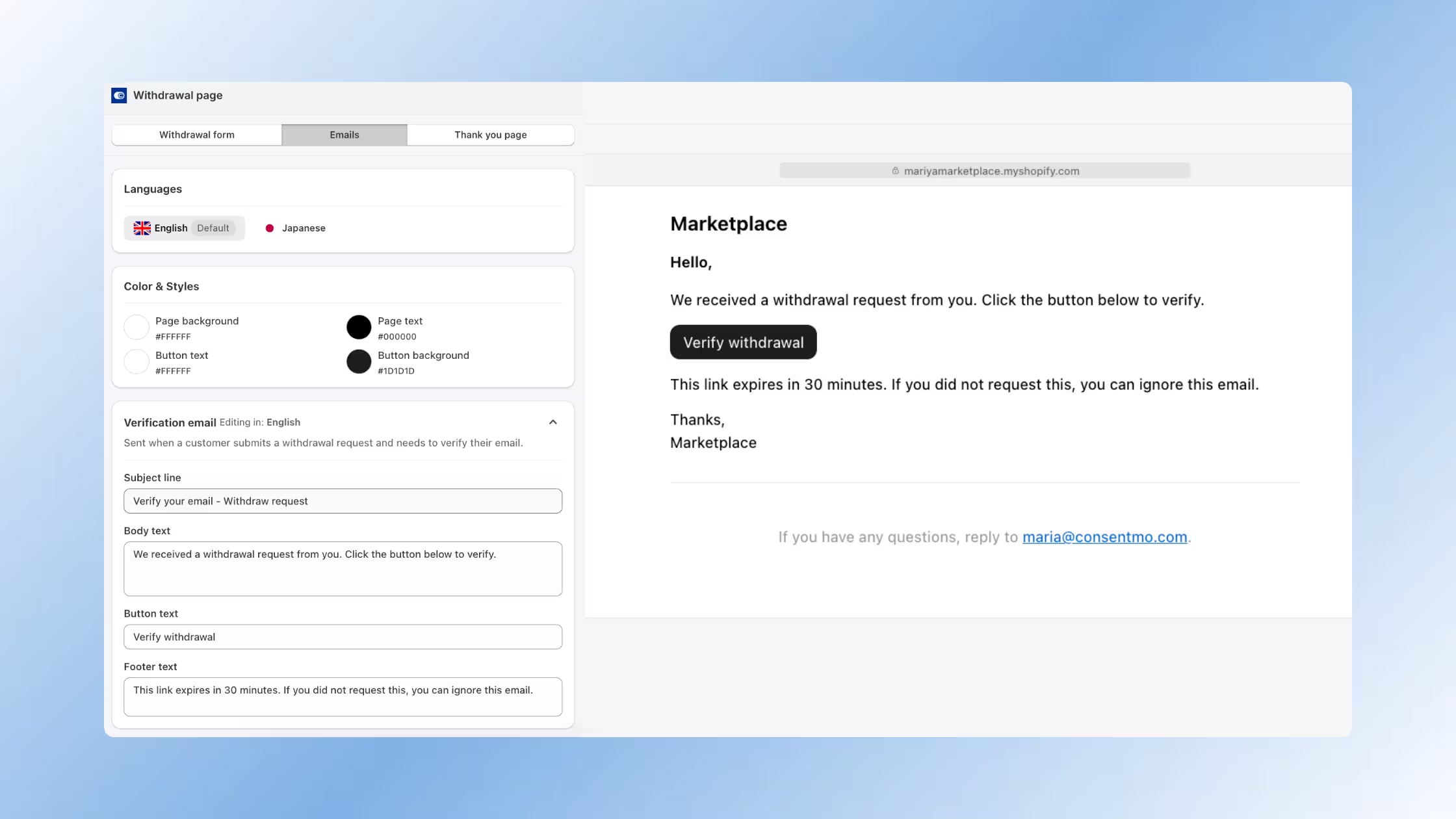
Step 5: Set up your Thank You page
Click the Thank you page tab to customize the heading and confirmation message customers see after submitting their withdrawal.
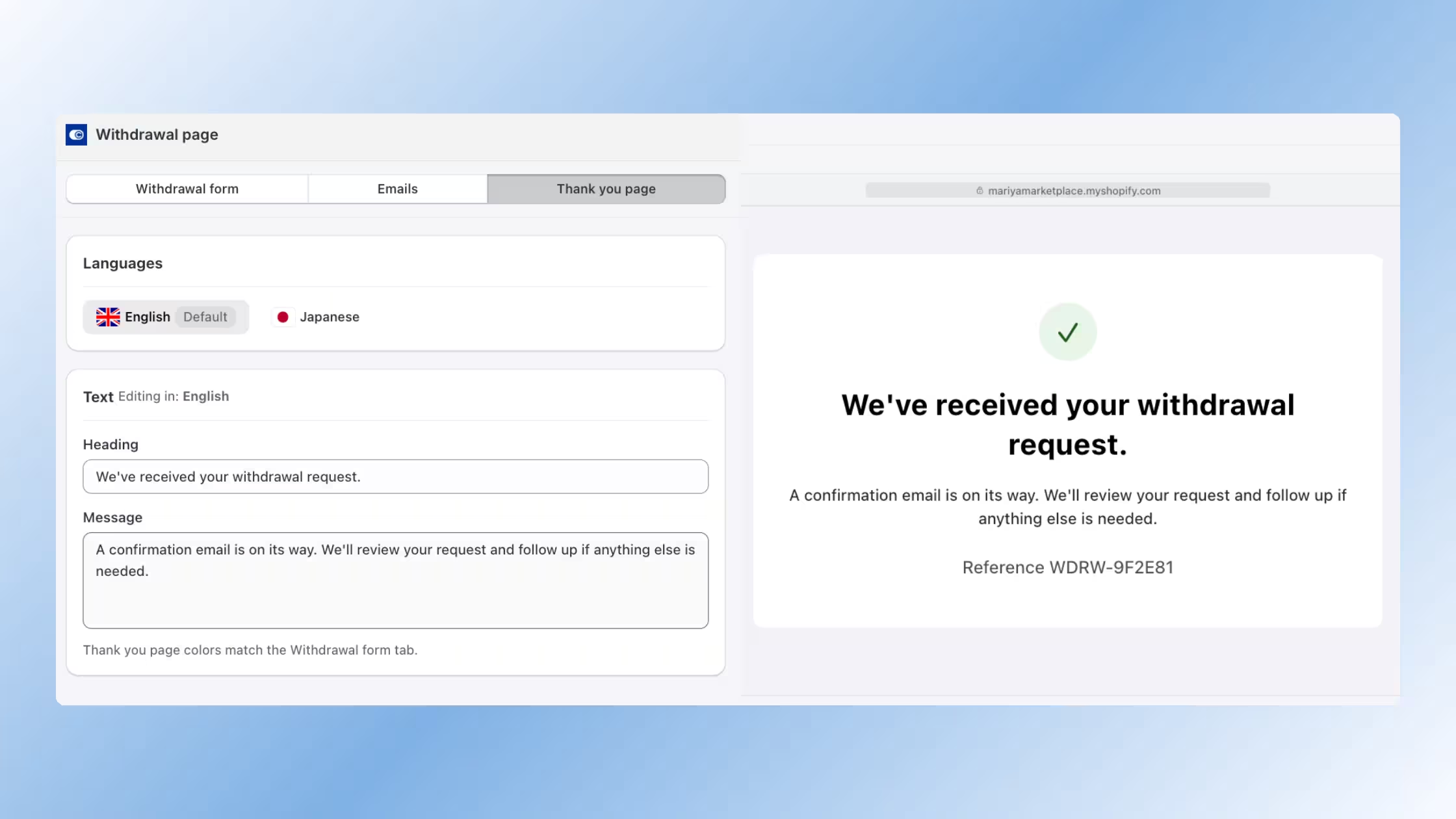
Step 6: Publish
Click the "Publish" button in the top-right corner. Your withdrawal page goes live, the footer link is added to your store, and the Order Status page button is activated.
That's it! Your store now has a compliant, documented EU withdrawal flow.
Step 7 (Optional): Add the Withdraw Contract button to your Order Status page
Enterprise plans can also embed a "Withdraw contract" button directly on Shopify's Order Status page, so customers can start a withdrawal request from the exact order they want to withdraw.
To enable it, go to Privacy Center > EU Withdrawal page > Withdraw contract button and follow the steps in how to add it to your Order Status page via the theme editor. Once active, customers will see a "Withdraw contract" button and description ("You can submit a withdrawal request for this order using the button below.") right on their order confirmation page, no searching required.
_converted.avif)
What Happens After a Customer Submits a Request
Once a customer completes the withdrawal flow:
- They receive a confirmation email with their unique reference code (e.g.,
WDRW-9F2E81) - The request is logged in Consentmo under EU Requests with all relevant details
- You review the request, assess eligibility, and handle any refund or return through your normal process
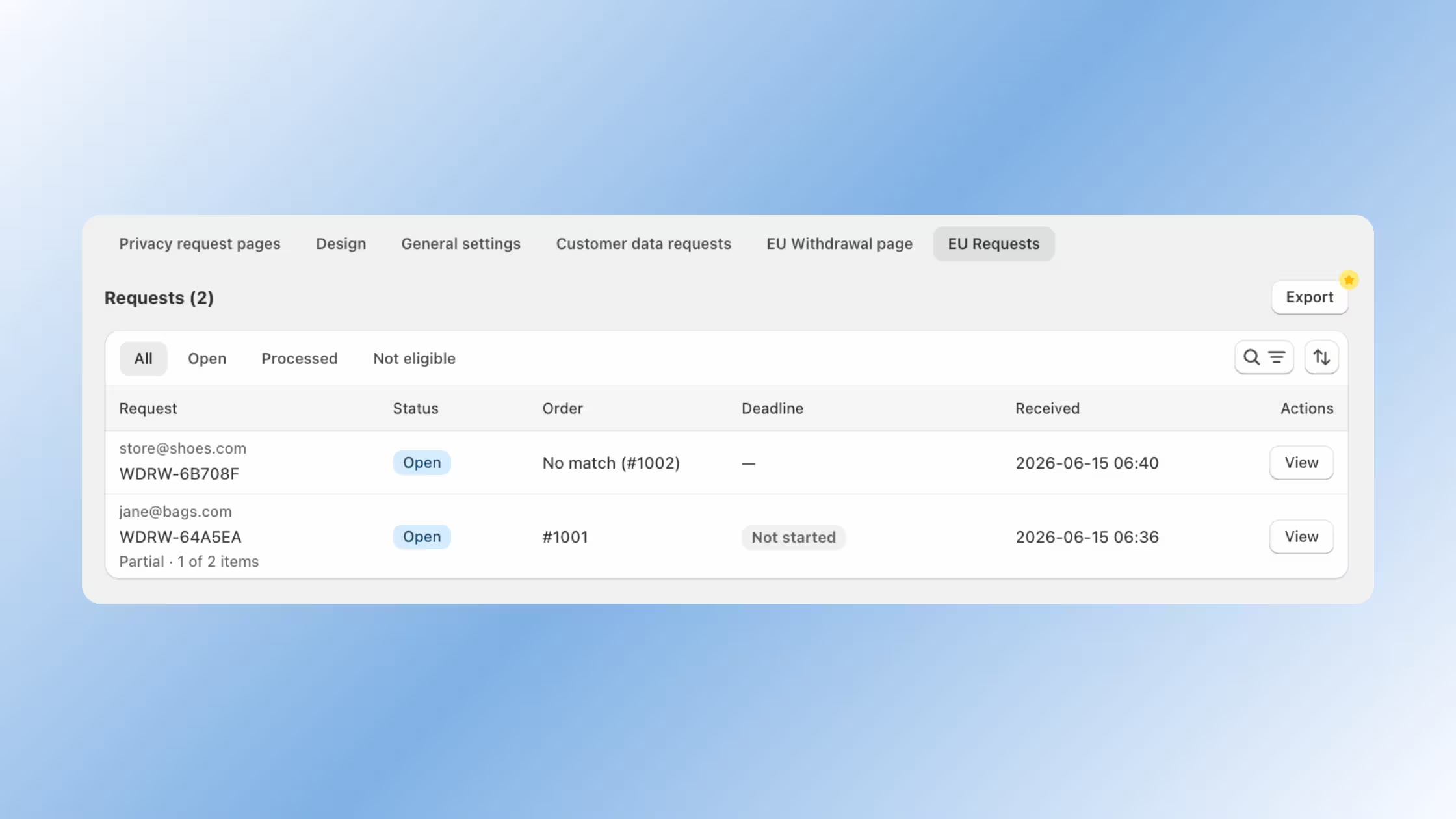
Consentmo does not automatically cancel orders or issue refunds. The decision and action stays with you.
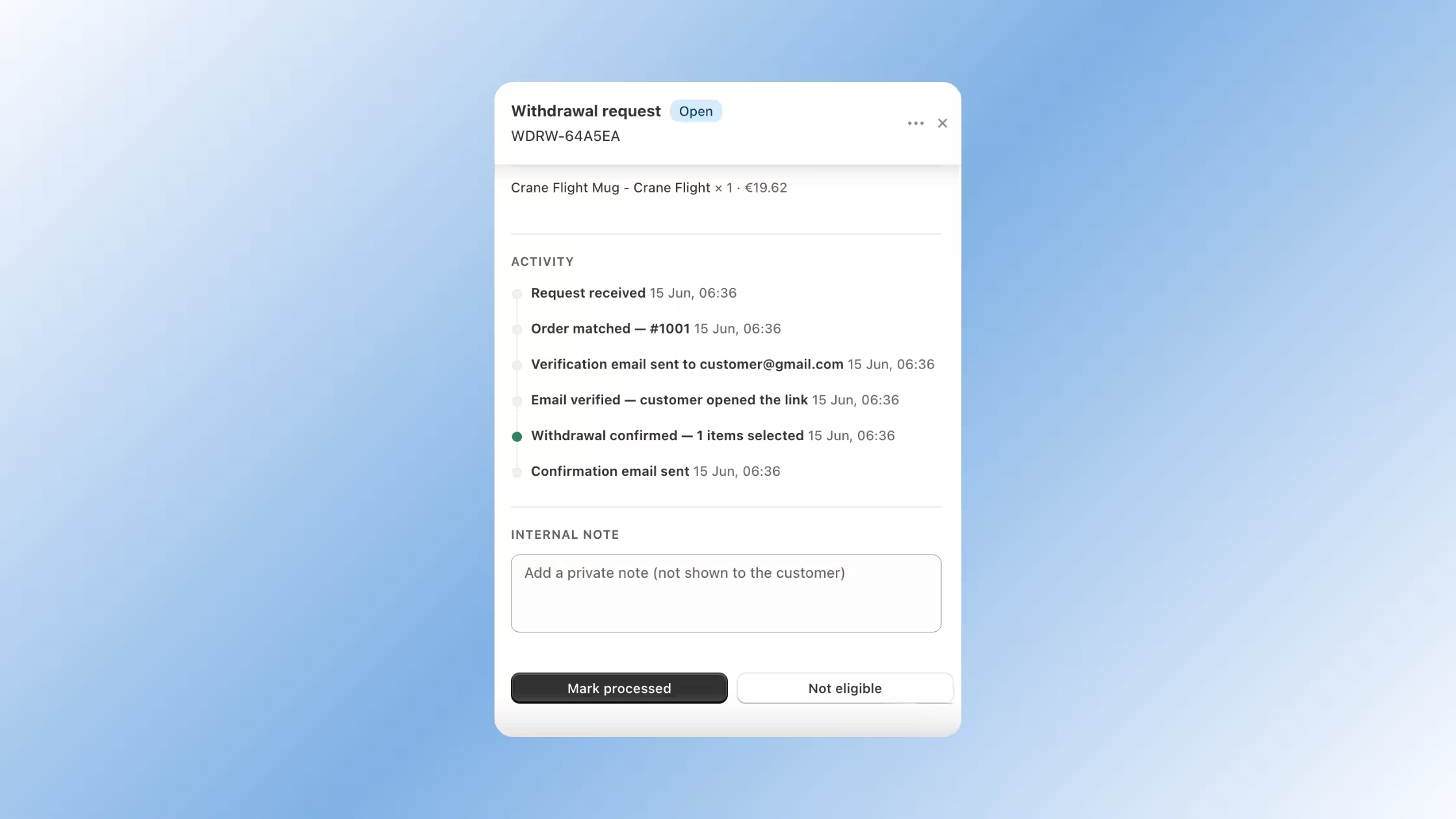
- Detailed activity log - Merchants can see a chronological timeline of what happened and when - from the moment a request is submitted to verification, item confirmation, emails, and merchant actions.
Enable EU Withdrawal Before June 19
The requirement takes effect on June 19, 2026. EU Withdrawal is already included in Plus and Enterprise plans, no additional setup required before you enable it.
Enable EU Withdrawal in Consentmo →
If you're on a Free or Standard plan, upgrade to Plus to access this feature.