What Is the Tracker Manager?
The Tracker Manager, found under the Cookie Manager tab in the Consentmo app, gives you a full picture of every tracking element running on your Shopify store. Cookies, scripts, pixels, and local storage items. Instead of guessing what's firing on your site, you get a clear, categorized list you can act on directly.
Below is a quick walkthrough of its core features and how to make the most of them.
Tracker Manager Dashboard
When you open the Tracker Manager, you land on the main dashboard. It shows the total number of trackers found on your store, broken down both by category (Necessary, Preferences, Statistics, Marketing, Unclassified) and by type (Cookies, Scripts, Storage, Pixels and others).
The category breakdown helps you understand your consent obligations at a glance. The type filter lets you drill into a specific kind of tracker to review or update its settings.
From the top bar you can also see when the last scan ran, when the next scheduled scan is set, and trigger a manual scan any time with the Start scan now button.
On-Demand Scan
The on-demand scan gives you an immediate snapshot of every tracker on your store. It detects cookies, pixels, scripts, and local storage entries in one pass.
- Free plan users can run one scan per month.
- Paid plan users can run scans on demand, whenever they need a fresh result. For example, after installing a new app or updating your theme.
Once the scan finishes, the results appear directly in the Tracker Manager dashboard so you can review and categorize anything new.
AI-Assisted Auto-Categorization
For paid plan users, Consentmo uses AI to automatically categorize the trackers found during a scan. This cuts down the manual work of sorting through a long list of cookies and scripts one by one.
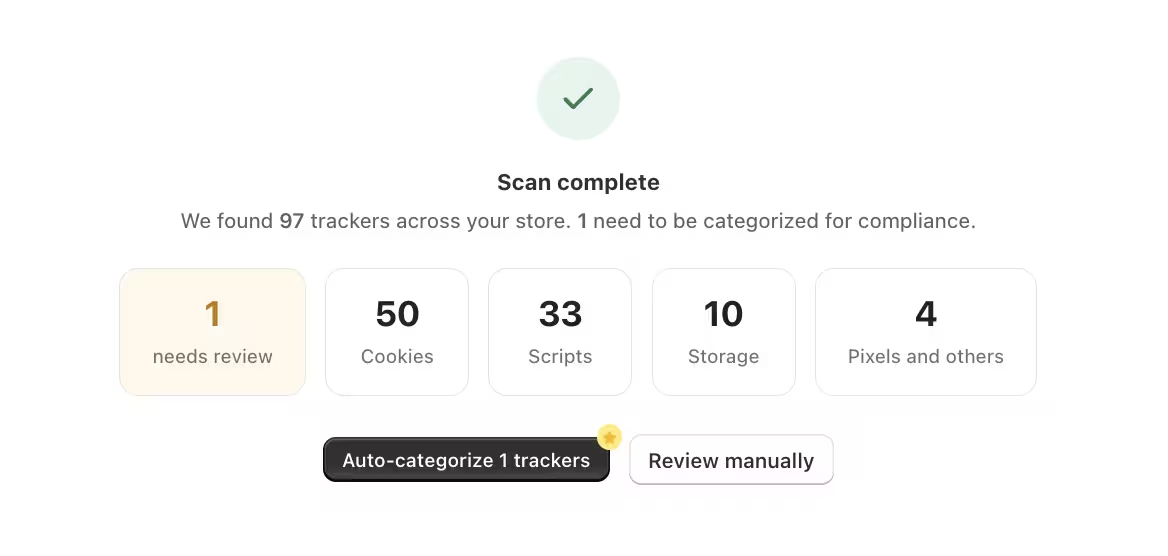
If the AI doesn't recognize a particular tracker, it will appear as Unclassified. You can then open the Manage Cookies section and set the category manually. Keeping unclassified trackers to zero is a good habit. It ensures your consent banner accurately reflects what's running on your site.
Scheduled Scanner
Available on the Plus and Enterprise plans, the Scheduled Scanner runs automatically at a regular interval you choose. Daily, weekly, or monthly. This is especially useful because your tracker profile changes more often than you might expect: installing or updating an app, launching a new marketing campaign, or editing your theme can all introduce new tracking elements.
To set it up, click Edit schedule in the top bar of the Tracker Manager. A modal will open where you can pick the interval, day, and time for the scan to run.

Once scheduled, the scanner runs in the background without any action needed from you. After each scan, you'll receive an email report confirming the scan is complete.
Scanning a Password-Protected Store
If your store is still in development and is password protected, you can still run a cookie scan. Follow the dedicated guide in our Knowledge Base for the step-by-step setup so the scanner can access your store pages.
What to Do After a Scan
Once the scan is complete and your trackers are categorized, you have a couple of useful next steps:
- Show tracker information on the cookie bar. Let visitors see the specific cookies your store uses directly from the consent banner.
- Add a Cookie Policy page. Generate a formatted table of your cookies and embed it on a dedicated page of your store.
Both options are available from within the Consentmo app. You can find more details in the related articles below:
- Showing additional cookie information
- Cookie Policy option
Need Assistance?
If you have questions about the Tracker Manager or need help interpreting your scan results, reach out to the support team at support@consentmo.com or through the live chat inside the app. The team is ready to help you stay on top of your cookie compliance.