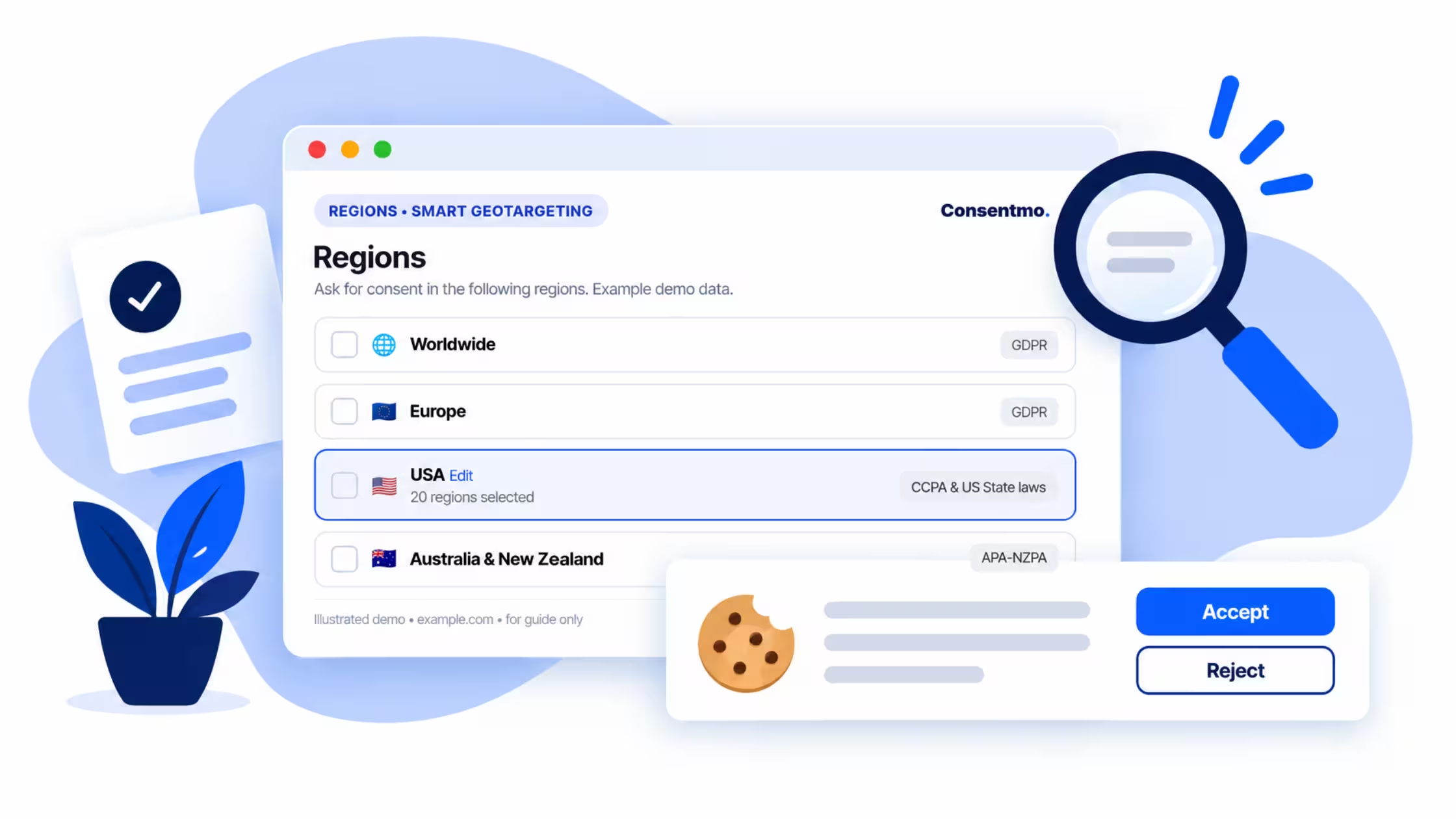
Timezone Settings for Consent Data
Display consent records, analytics, and exports in your preferred timezone.
Managing consent data across different time zones has always been a small but persistent headache — especially for stores with global teams or multi-region operations. Timestamps that don't match your local time make log reviews slower, exports harder to interpret, and cross-team reporting more confusing than it needs to be.
That's why we've added a dedicated Timezone setting in Consentmo. You can now set a custom timezone for your store, ensuring all consent-related data is displayed consistently across every part of the app.
What's New
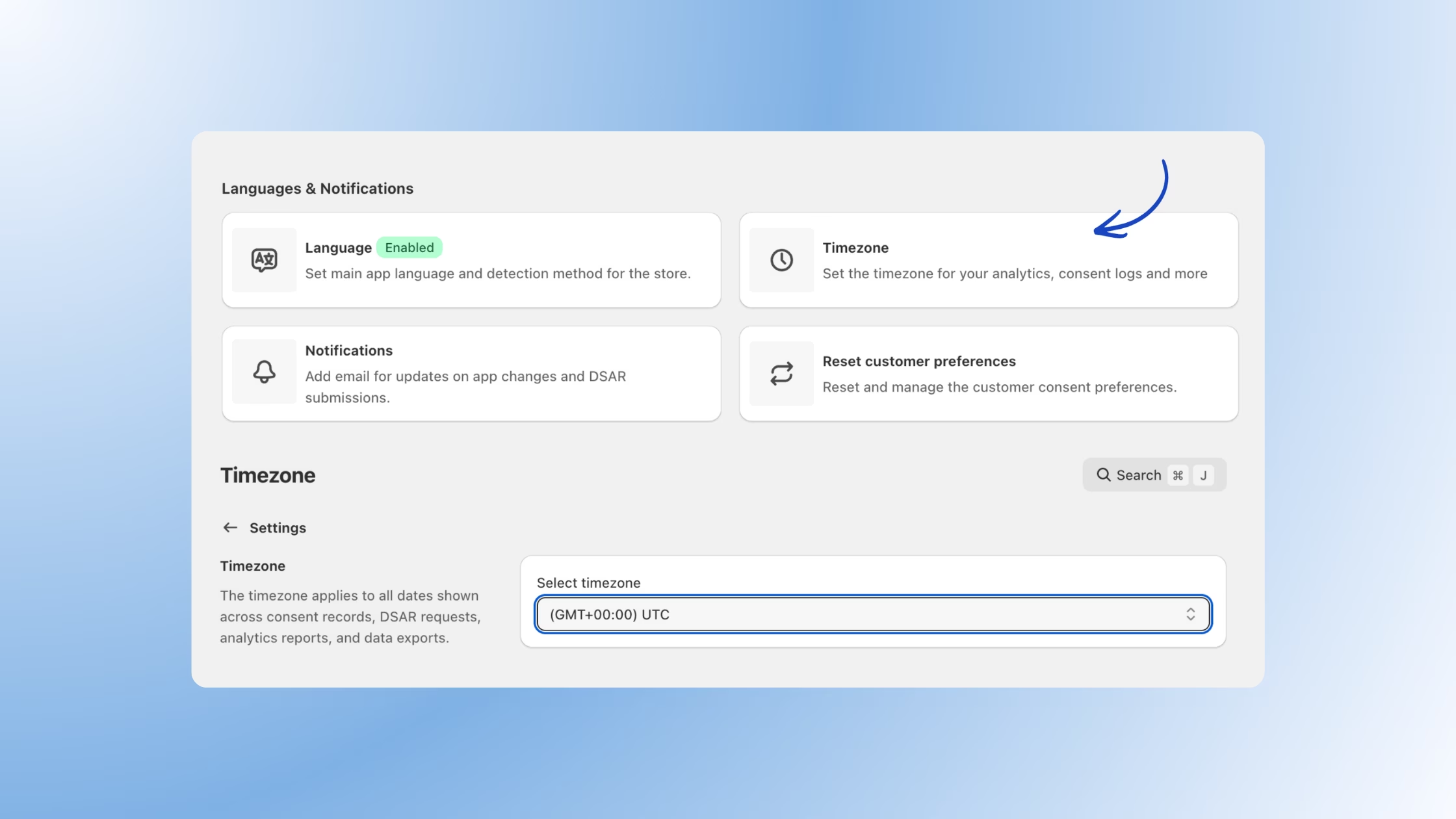
From Settings > Timezone, you can select any timezone from a searchable dropdown. Once set, that timezone applies globally to:
- Consent records and logs
- DSAR request timestamps
- Analytics reports
- Data exports
No more mentally converting UTC timestamps or second-guessing when a record was created.
How This Feature Helps Merchants
Consistent Timestamps
All consent records, analytics, and exports now reflect your selected timezone — not the server's default. This means the data you see in the app matches the time your customers actually gave or withdrew consent.
Clearer Reporting
When reviewing logs or sharing reports with your team, everything is already aligned. No conversion needed, no room for misreads — especially useful during audits or compliance reviews.
Global Flexibility
Whether your team is spread across multiple regions or your store serves customers in different countries, this setting keeps everyone on the same page. Set it once and your entire data view adjusts accordingly.
How to Set It Up
- Go to Settings in your Consentmo dashboard.
- Open the Timezone card under the Languages & Notifications section.
- Use the dropdown to search for and select your preferred timezone.
- Save — your selection applies immediately across the entire app.
Set your store’s timezone now. The setting is available on all plans, including Free.
This is one of those small changes that makes a meaningful difference in day-to-day operations. We hope it saves your team time and reduces friction when working with consent data.
As always, if you have questions or feedback, reach out to our support team — we're happy to help.


.avif)