Five possible reasons why the Cookie Banner is not visible on your Shopify store
Updated on October 13, 2026.
You open your storefront and the cookie bar does not appear. These five checks resolve most cases.
1. The app or the banner is not enabled
First, confirm Consentmo is active and the banner is on:
- Open Consentmo > Cookie banner
- Set to Enabled
- Save and hard-refresh your storefront
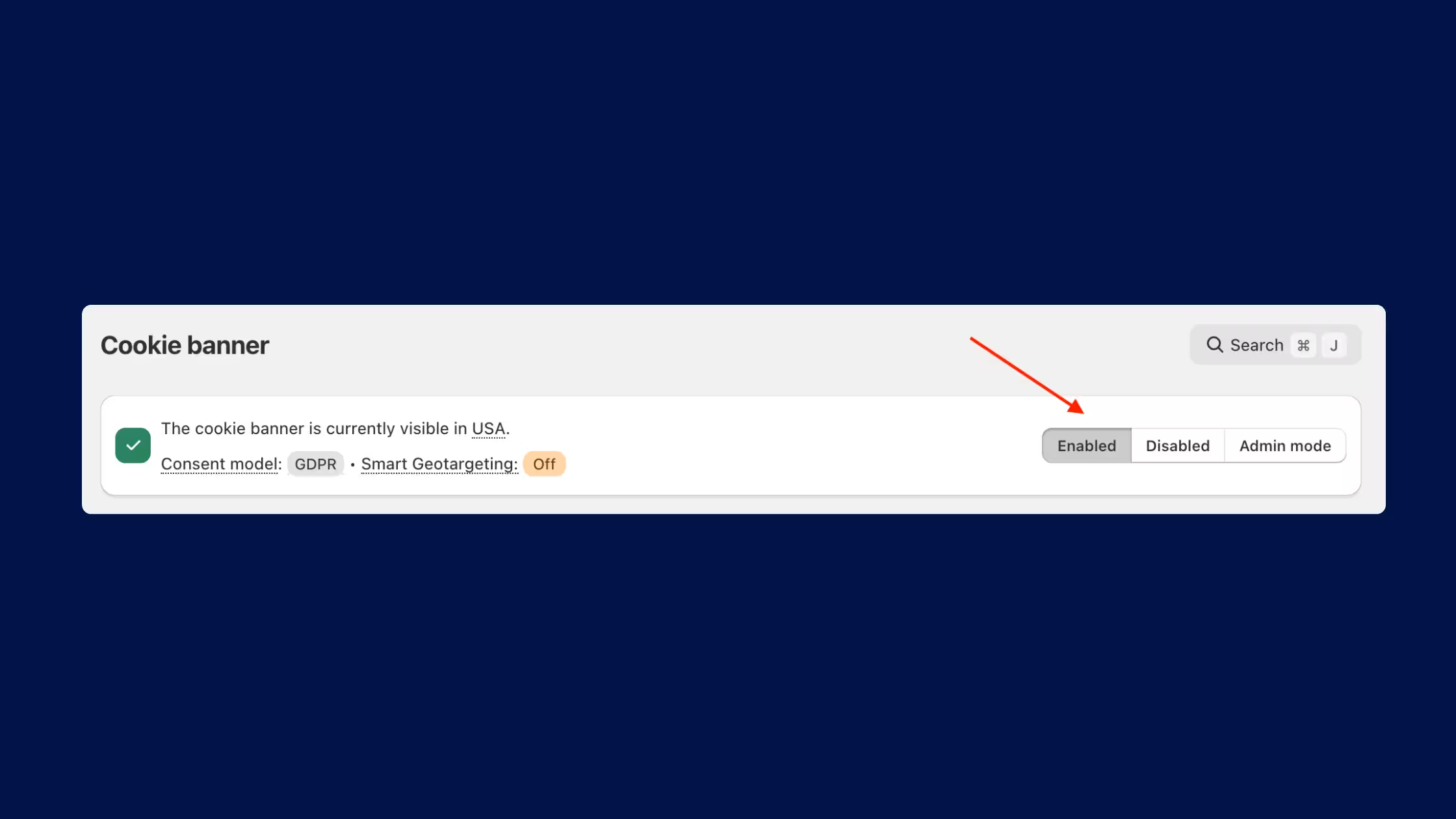
If you test as staff, use Admin Mode in the same browser where you stay logged in to Shopify. Admin Mode ignores region rules so you see the bar as a visitor would.
2. Region targeting hides the bar for your location
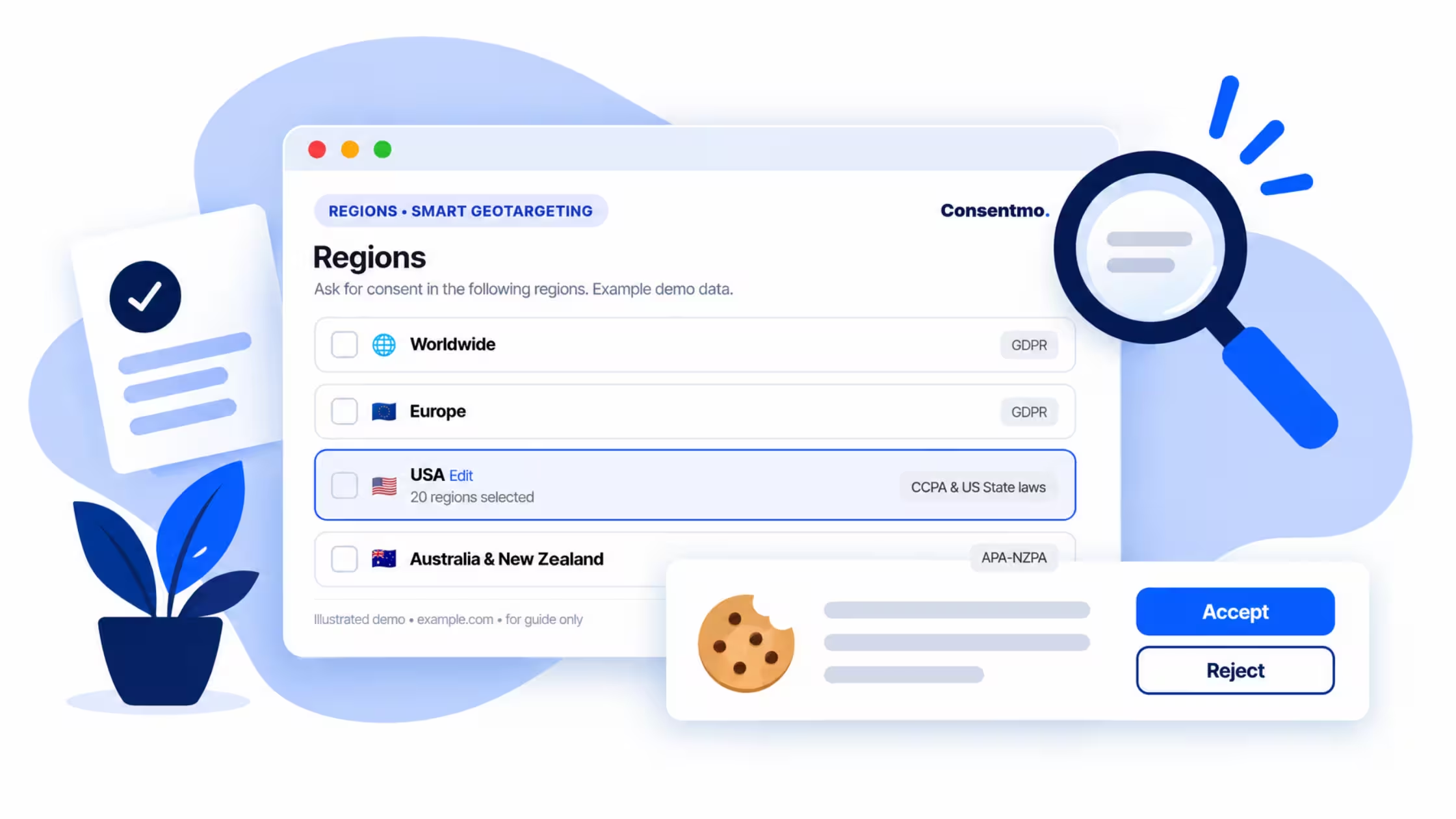
Consentmo shows the right consent model per visitor location. With Smart Geotargeting on Plus and Enterprise, rules cover 280+ countries and territories. EU/EEA visitors see opt-in, California visitors see opt-out, other regions see their local rules.
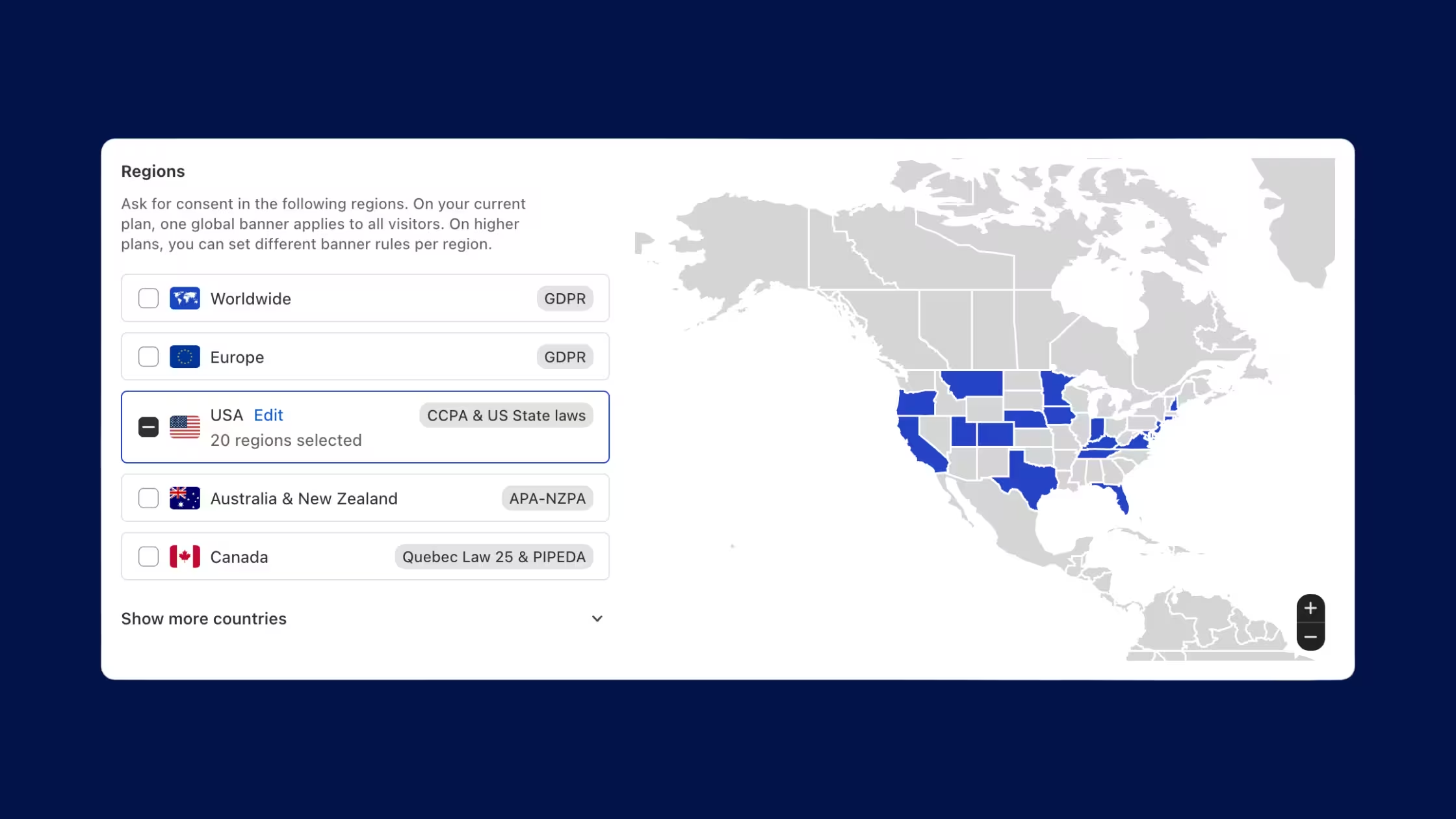
If you test outside your target regions, you see no bar while your customers still do. Fix it two ways:
- Test with a VPN with an IP in your target market, for example EU, Brazil, or California
- Or enable Admin Mode for a direct preview, then turn it off for live checks
Check Consent Banner > Behavior > Enable For Specific Regions and confirm your target markets are on. On Standard you manage core multi-region compliance. On Plus and above Smart Geotargeting automates it per country.
3. You already interacted with the banner
The bar shows until a visitor chooses. After you click Accept, Reject, or Preferences, Consentmo stores that choice and the bar stays hidden on that browser.
For a fresh test:
- Open a new incognito/private window
- Or clear site cookies for your domain
- Or use the cookie widget to reopen preferences and reset your choice
3. The Theme App Embed is turned off
This is the missing step in most tickets. Shopify will not show the banner until you activate the Consentmo embed in your live theme, even when the app itself is enabled.
Check it in 10 seconds:
- In Shopify admin go to Online Store > Themes > Customize
- Open Theme settings > App embeds
- Turn on the Consentmo embed and Save
- Confirm you edited the published theme, not a draft theme
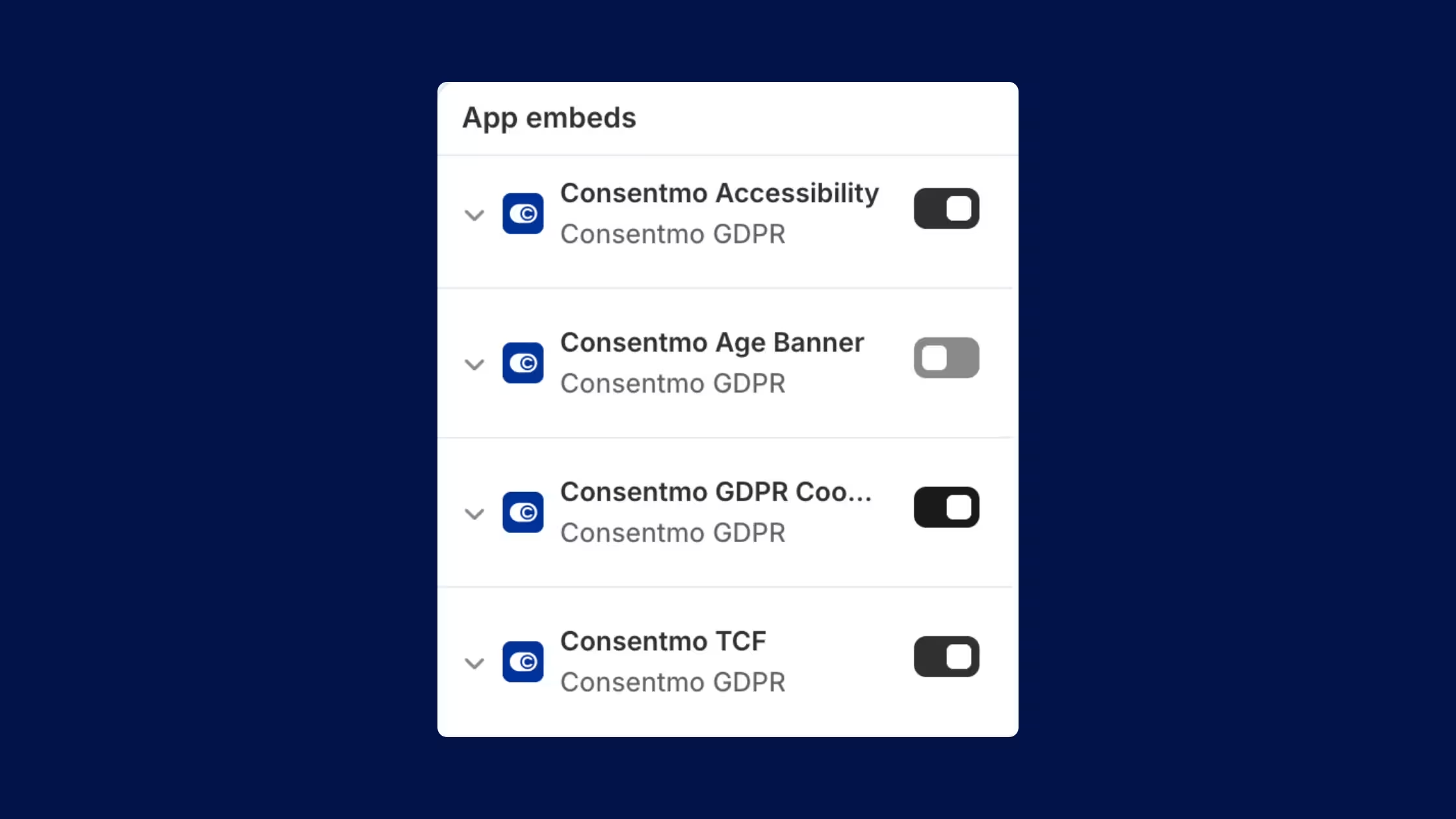
Retest in an incognito window after saving. If you switched themes recently, repeat this step. The embed does not carry over on its own.
5. A second consent app or theme code blocks Consentmo
Two cookie apps on one store conflict. They fight over scripts, pixels, and banner display, and one or both fail.
Keep one consent app only:
- Remove or fully disable other GDPR, cookie, or privacy banner apps
- Remove leftover snippets from those apps in theme.liquid or custom pixels
- Clear theme cache and retest in incognito
Also confirm your Consentmo embed is active in Theme App Embeds and that you did not hide the banner with custom CSS.
Quick checklist
- Banner set to Enabled
- Test region matches your region rules, or use Admin Mode
- Fresh incognito session, no prior consent stored
- One consent app only, embed active, no CSS hide
- Unlimited impressions on your plan, so traffic volume is not the cause
If none of these steps restore the bar, contact our support team via live chat or at [email protected] with your store URL, plan, test country.