Accessibility on Shopify is easy to postpone until a theme update, a redesign, or a customer complaint forces the issue. Most teams still lack a clear view of which pages fail basic checks, which problems repeat across templates, and what to fix first.
Accessibility Scanner is Consentmo’s answer to that gap. It is part of our broader investment in compliance, accessibility auditing, and monitoring, and a concrete step toward a fuller compliance platform for Shopify merchants.
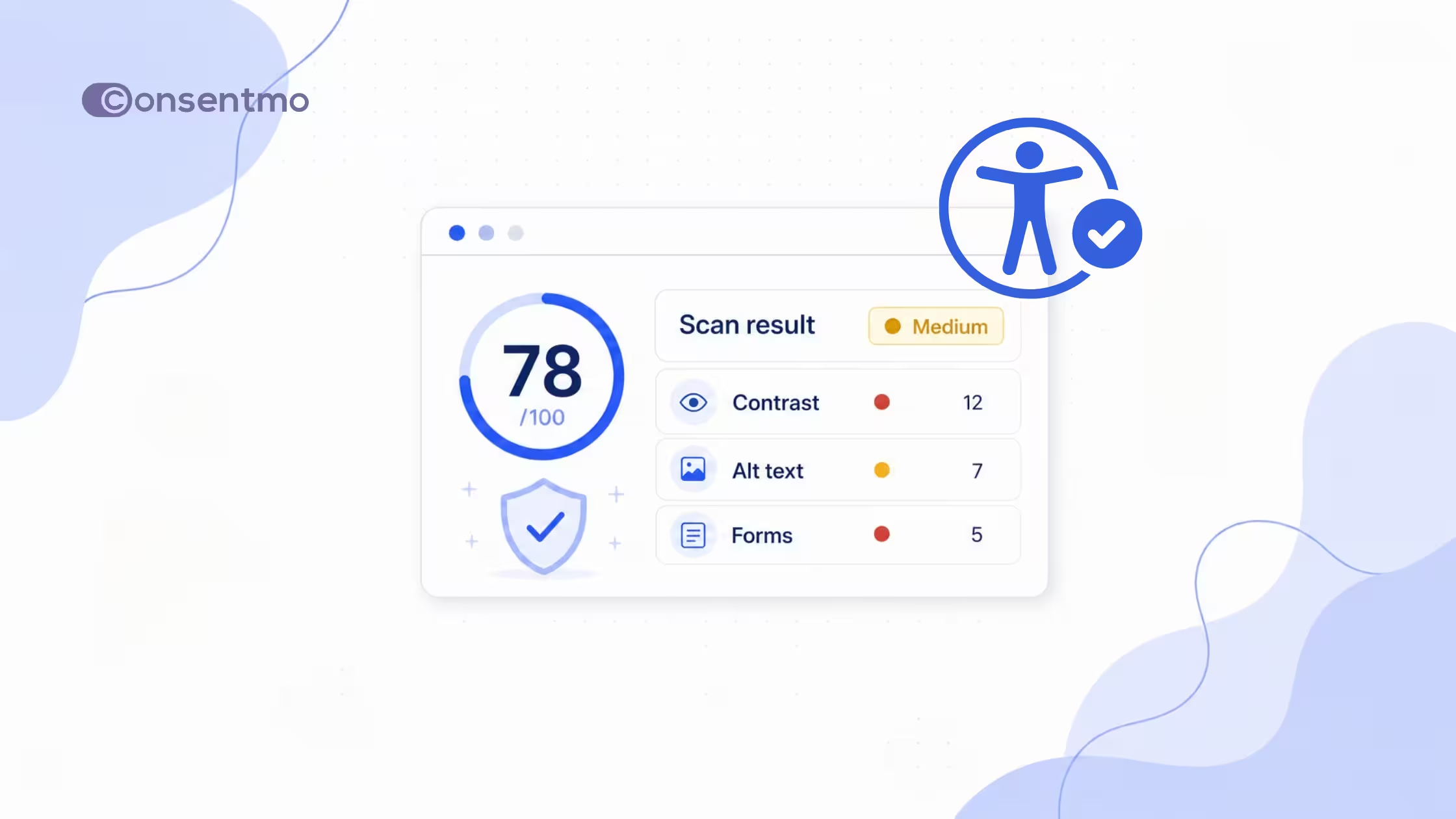
You can scan key storefront pages from inside Consentmo, see an overall score and risk level, work through prioritized findings, and schedule follow-up scans after theme or content changes. The scanner targets WCAG 2.2 AA. It is a practical storefront check, not a full legal audit, and it does not auto-fix your theme for you.
Why you need an accessible Shopify store
Shopify’s own theme guidance is explicit: design and content choices should keep the store usable for everyone, including people with disabilities, and following a short checklist alone does not guarantee a fully accessible store. Shopify points merchants to WCAG and practical basics such as contrast, sequential headings, alt text, keyboard focus, and media controls (Shopify Help: Accessibility for themes).
Those patterns show up on ecommerce storefronts every day: product galleries without useful alt text, checkout-adjacent forms without labels, low-contrast sale badges, and shared header or footer components that fail on every template at once.
A widget or an accessibility statement helps, but neither replaces knowing what is broken on the homepage, product template, cart, and collection pages. Scanner results give you that inventory so theme work has a clear queue.
What the Consentmo Accessibility Scanner does
The Accessibility Scanner checks key Shopify storefront pages for accessibility issues and surfaces the results inside Consentmo, so you can see what failed, what needs a human look, and what already passes.
Standard
Target standard: WCAG 2.2 AA.
What gets reviewed
The scan looks across storefront building blocks such as:
- Images (alt text)
- Forms and labels
- Color contrast
- Headings and structure
- Navigation
- ARIA semantics
- Links
- Focus and keyboard access
- Language
- Tables
- Media
- Lists
- and related checks under broader categories
How results show up
Findings are not a flat dump of rules. They land in Compliance review by category, with each row showing:
- Category (for example Color contrast, Headings & structure, Focus & keyboard, ARIA semantics, Forms & labels, Other)
- Issues (open issues and items still “to review”)
- Coverage (how much of that category the scan evaluated)
- Status badges such as Important, Manual review, or Pass
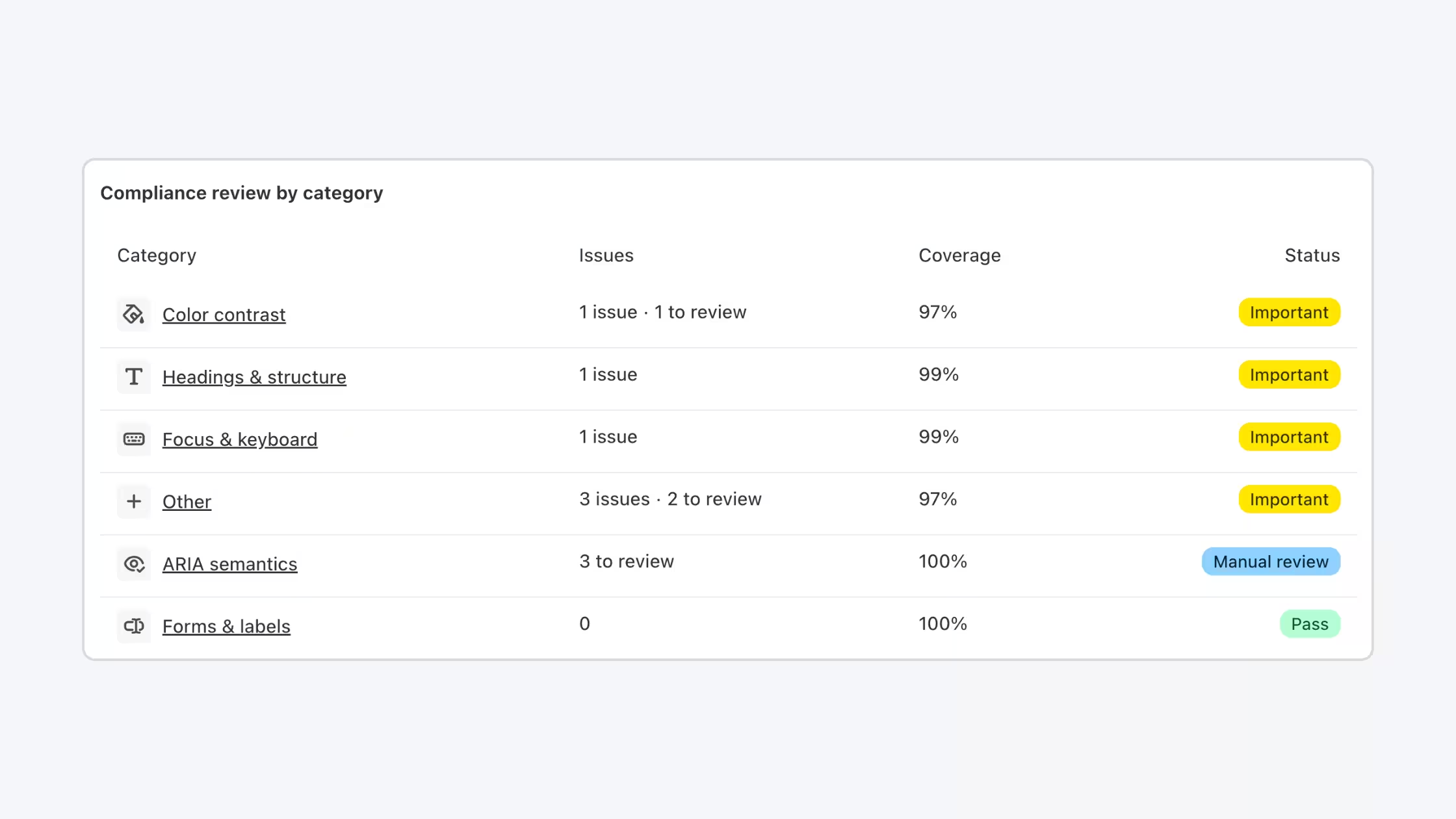
From there you open a category for prioritized issues, affected pages and components, technical detail (selectors, rules, devices), and anything that still needs manual review before you treat it as fixed.
Benefits of running an accessibility scan
One scan covers key storefront pages and templates across a broad set of accessibility categories, so you are not limited to a single URL paste into a generic tool.
Accessibility score and risk level
Each run gives you:
- An overall score out of 100
- A risk level
- Counts of issues to fix
- Checks that need review
- How many pages were scanned
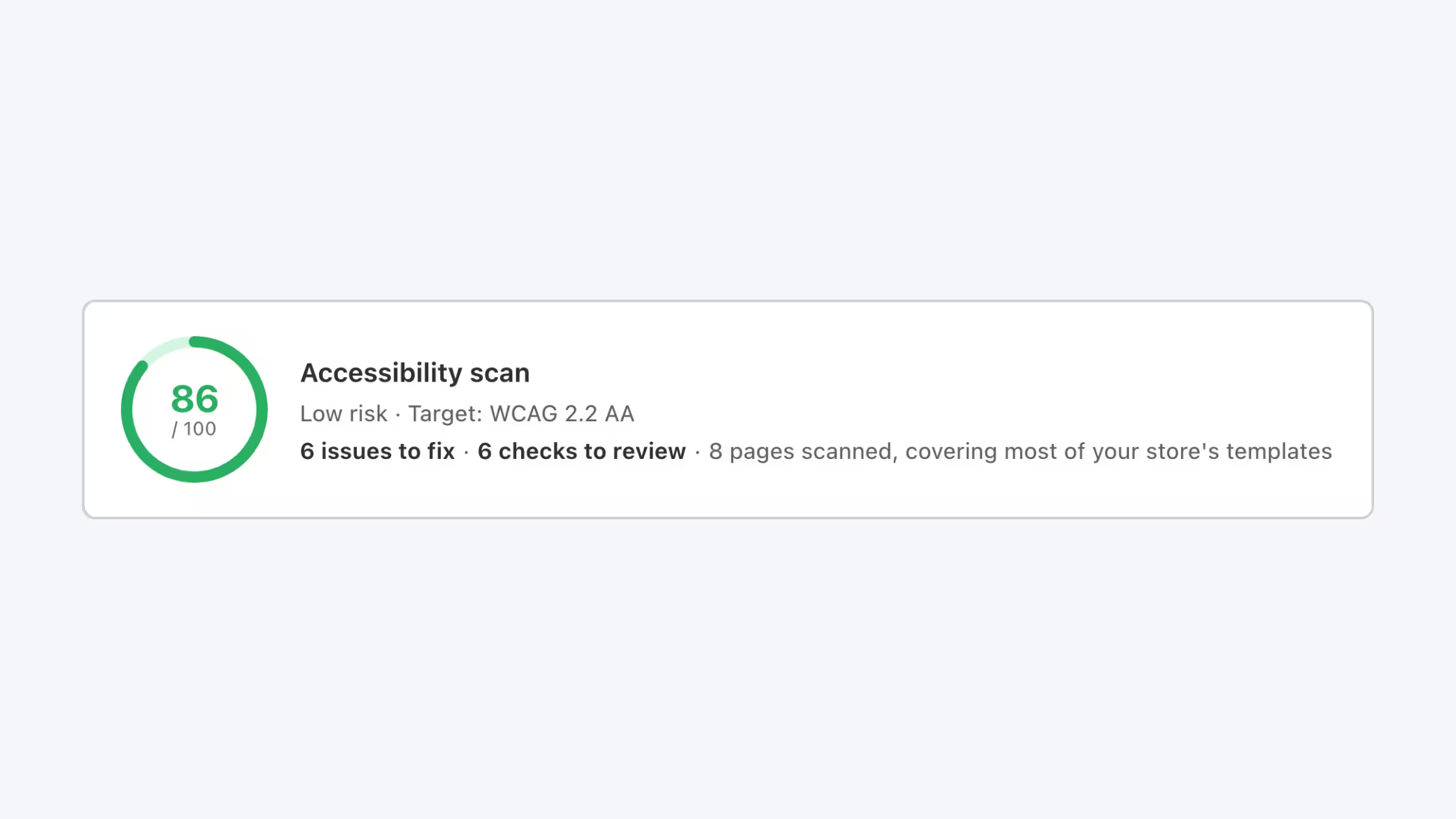
That summary is useful for internal prioritization and for sharing status with a developer or agency without dumping a raw rule list.
Prioritized issue resolution
High-impact problems surface under Fix these first, so you start with Critical findings before lower-priority noise.
Issues come with different flagged importance, including:
Issue grouping across pages
When the same problem appears on several pages or on a shared component, the scanner groups it. One theme or template fix can clear multiple page-level hits, which is how Shopify themes actually work.
Technical guidance on each issue
For detected issues, guidance can include:
- What needs to be checked
- Affected elements
- Selectors
- Device coverage
- Relevant accessibility rule
- Affected user groups
- Applicable WCAG standards
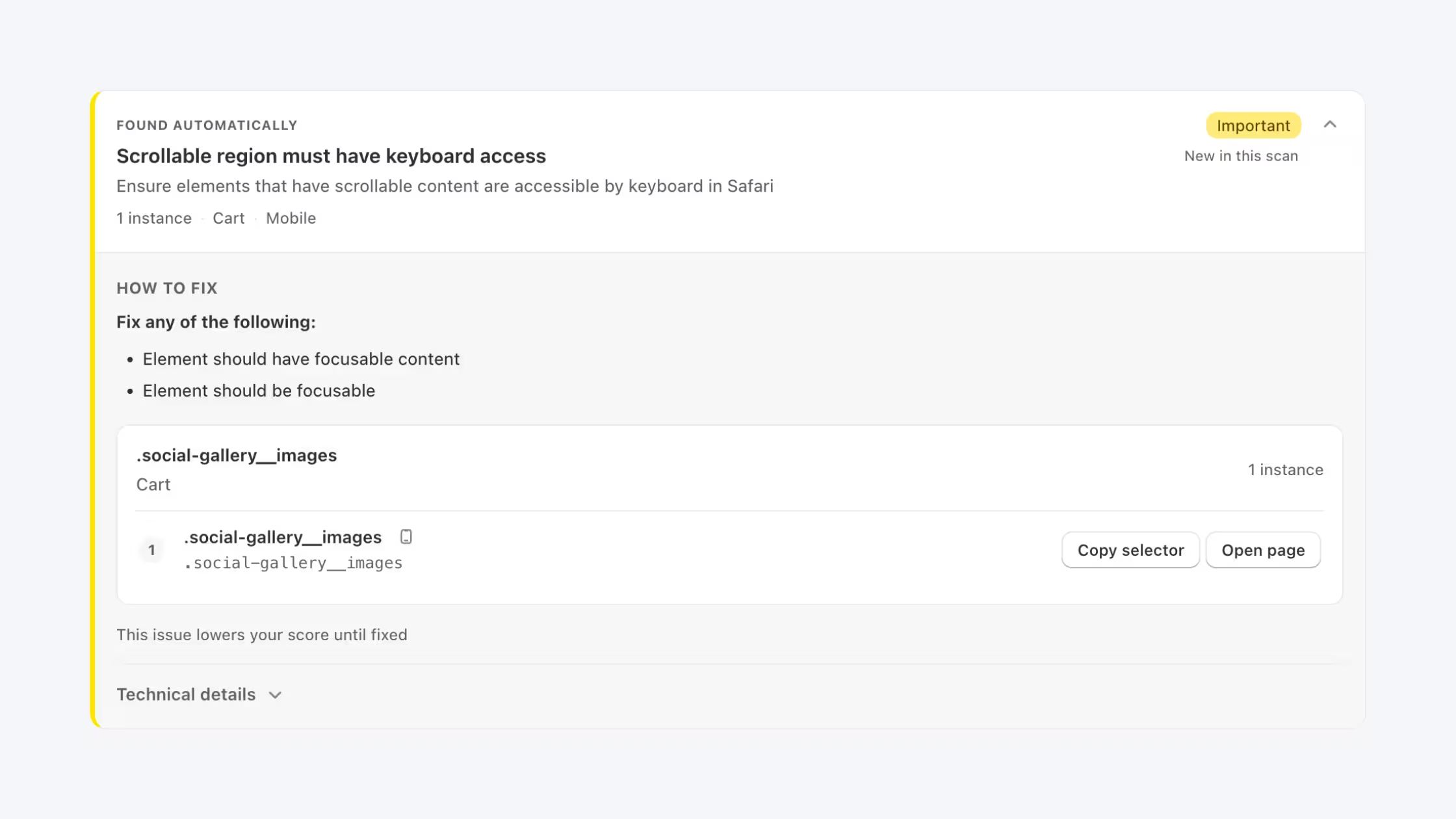
That detail is meant for whoever edits the theme: you, your developer, or your agency.
On demand and Scheduled scans
Accessibility Scanner supports two ways to check your storefront:
- On-demand: Open Accessibility → Scan and click Start scan now whenever you need a fresh read (after a theme publish, new app, or form change).
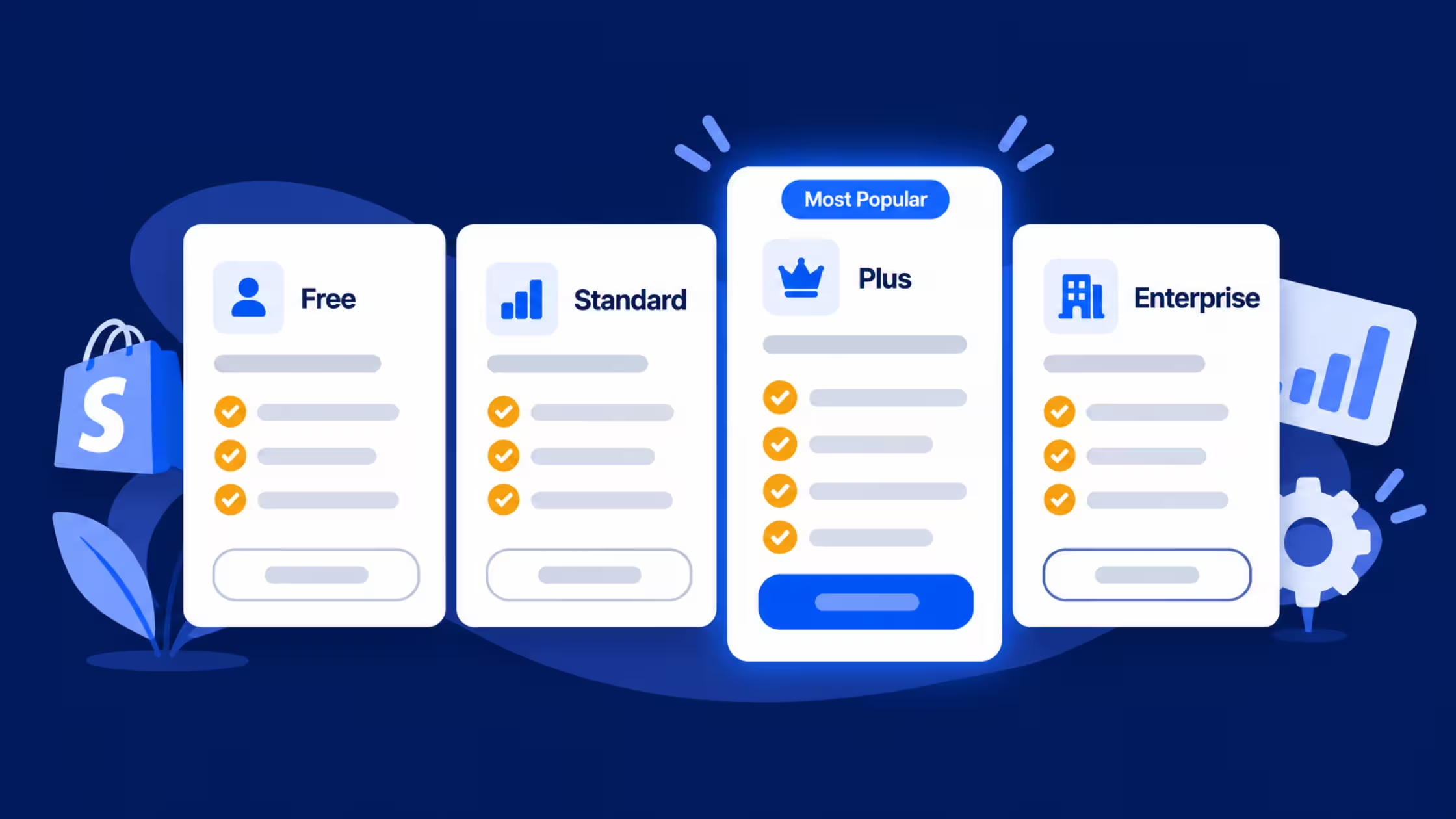
- Scheduled (Plus): Set a repeating run so monitoring does not depend on someone remembering to click scan.
The schedule dialog frames the habit around real storefront change. Schedule scans to catch accessibility issues when you:
- Update your theme or storefront layout
- Add new apps, scripts, or marketing embeds
- Change product pages, navigation, or forms
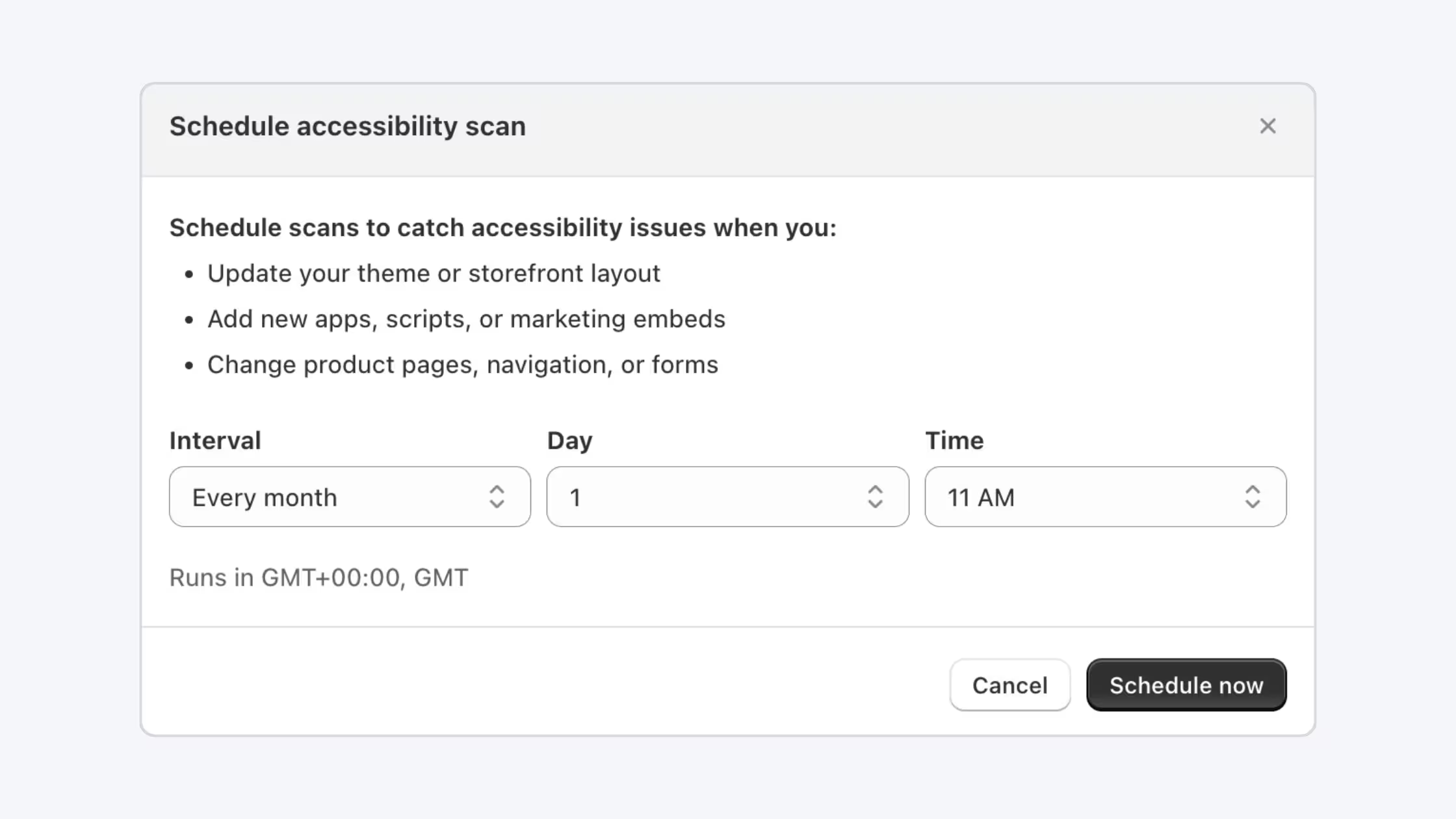
Those moments are where contrast, labels, focus order, and alt text most often break, including failures that land on shared templates and then repeat across many URLs.
Step-by-step: set up and use Accessibility Scanner
1. Upgrade to Plus
Accessibility Scanner is available on the Plus plan. Upgrade if your store is not already eligible.
2. Run a scan
Go to Accessibility → Scan and select Run scan to check your storefront.
3. Review issues by priority
Work highest to lowest:
- Critical
- Important
- Needs review
Open technical details for each item. Note shared components so one fix can clear several pages.
4. Fix in the theme, then scan again
After theme or storefront changes, run another scan to confirm what cleared and how the score moved.
5. Monitor
Check your score regularly. Run a new scan when you ship:
- Theme updates
- New pages
- Design changes
- Major content changes
Scheduled scans keep that rhythm without relying on memory.
How this fits the rest of Consentmo accessibility
Consentmo already supports merchants with accessibility-oriented tools such as the accessibility widget, alt text scanning, analytics, region-based controls, and accessibility statement support. Accessibility Scanner adds structured WCAG 2.2 AA storefront scanning, scoring, prioritization, and monitoring next to those tools.
Together with privacy and consent features, the goal is one compliance workspace: cookie and tracker control, policy pages, and clearer accessibility visibility for the same Shopify store.
For more accessibility tools, see:
- Why Your Shopify Store Needs an Accessibility Statement
- Alt Text Manager: Scan & Fix Image Alt Text Instantly
- How the U.S. Is Responding to the ADA Website Lawsuit Surge (and What Shopify Merchants Should Do)
Practical workflow we recommend
- Baseline, Run an on-demand scan and export or screenshot the score, risk level, and Critical list for your team.
- Cluster, Tackle grouped/shared-component issues first (header, footer, product card, form patterns).
- Theme sprint, Fix Critical contrast, labels, alt text, and keyboard barriers in the theme.
- Verify, Rescan; confirm Pass where you expect it and clear leftover Important items.
- Schedule, Enable scheduled scans; add a checklist item after every theme deploy.
- Human pass, Spot-check Needs review items with keyboard-only navigation and a screen reader on homepage, product, and cart.
- Document, Keep your accessibility statement current as you improve the storefront.
Consentmo remains focused on practical compliance for Shopify: clear findings, honest limits, and tools that fit how merchants and agencies actually ship theme changes.
If you already use Consentmo for consent and privacy, Accessibility Scanner extends that same operating habit to storefront accessibility: measure, prioritize, fix, and recheck.
A stronger accessibility score does not replace care for real shoppers, but a regular scan makes it far easier to see what still blocks them and what your next theme change should fix.