If your store runs on a non-Plus Shopify plan, there's an important deadline coming up.
By August 26, 2026, you're required to upgrade your Thank you page and Order status page to Shopify's new versions.
This article explains what's changing, what you need to do, and why your Consentmo cookie banner will keep working without a problem through and after the transition.
What Is Shopify Changing?
Shopify is replacing the older versions of the Thank you and Order status pages with a redesigned foundation that is more secure, easier to maintain, and customizable through the checkout and accounts editor.
The key change for merchants: any customizations made with additional scripts, incompatible apps, or old-style script tags will stop working after the deadline. You'll need to recreate those customizations using Shopify's new blocks and web pixels system.
Stores on the Pause and Build plan are upgraded automatically. Stores on the Plus plan follow a separate upgrade path. This guide is specifically for merchants on standard non-Plus Shopify plans.
The Deadline: August 26, 2026
Mark this date. If you haven't manually upgraded by then, Shopify will auto-upgrade your pages. Any customizations that relied on additional scripts or deprecated app features will be removed in that process.
One important note: if you pause your store at any point before the deadline, your pages are upgraded automatically at that moment, and it cannot be reverted even after you unpause.
How to Check If You Still Need to Upgrade
Go to your Shopify admin, then navigate to Settings > Checkout. Look at the Configurations section. If you see a notice prompting you to upgrade your Thank you and Order status pages, you're still on the deprecated version and need to act.
If there's no notice, you're already on the new pages.
How to Complete the Upgrade
Shopify generates a personalized upgrade guide for your store automatically. Here's the general process:
Step 1: Review your upgrade guide
From Settings > Checkout, click "Upgrade Thank you and Order status pages by August 26, 2026" to expand the notice, then click Review customizations. This guide lists everything currently running on your pages so you know exactly what needs attention.
If the guide is empty, you can skip ahead to Step 5.
Step 2: Handle compatible apps
In the Apps section of the upgrade guide, you'll see which installed apps have already been updated by their developers to work with the new pages. Follow the instructions for each app, either setting up app pixel tracking or adding blocks to recreate your customizations.
Step 3: Handle incompatible apps
The Incompatible apps section shows apps that haven't been updated yet. For those, you'll need to either contact the app developer or find an alternative. Custom app pixels should also be reviewed here to confirm tracking will continue working.
Step 4: Replace additional scripts
As of August 28, 2025, the additional scripts section in Checkout settings is view-only. You can no longer edit scripts manually. If you have any additional scripts on your current Thank you or Order status pages, use the upgrade guide to identify their category (authentication, order tracking, analytics, etc.) and replace them using Shopify's built-in features, apps from the App Store, or custom apps.
Step 5: Upgrade to publish
Once you've set up all your customizations on the new pages, go back to Settings > Checkout, click "Open upgrade report" on your configuration, and click Upgrade. Your new pages will go live immediately for customers after checkout.
For the full Shopify documentation, visit: https://help.shopify.com/en/manual/checkout-settings/customize-checkout-configurations/upgrade-thank-you-order-status/upgrade-guide
Can You Undo the Upgrade?
Yes, but only within a window. You can revert to the old pages if all three of these conditions apply:
- Your store was created before January 6, 2025
- You had pre-existing customizations using additional scripts or script-tag-based apps
- You manually upgraded less than 30 days ago
To revert: go to Settings > Checkout, find the Order status page additional scripts section, and click the revert link. Select a reason and confirm. Any block-based customizations you made are saved as a draft and can be republished later.
If you don't upgrade again before August 26, 2026, your pages will be auto-upgraded and the revert option disappears permanently.
Consentmo Is Already Ready
You don't need to take any action on the Consentmo side. Our Customer Accounts Block is fully compatible with Shopify's new Thank you and Order status pages and will continue working without interruption after the deadline.
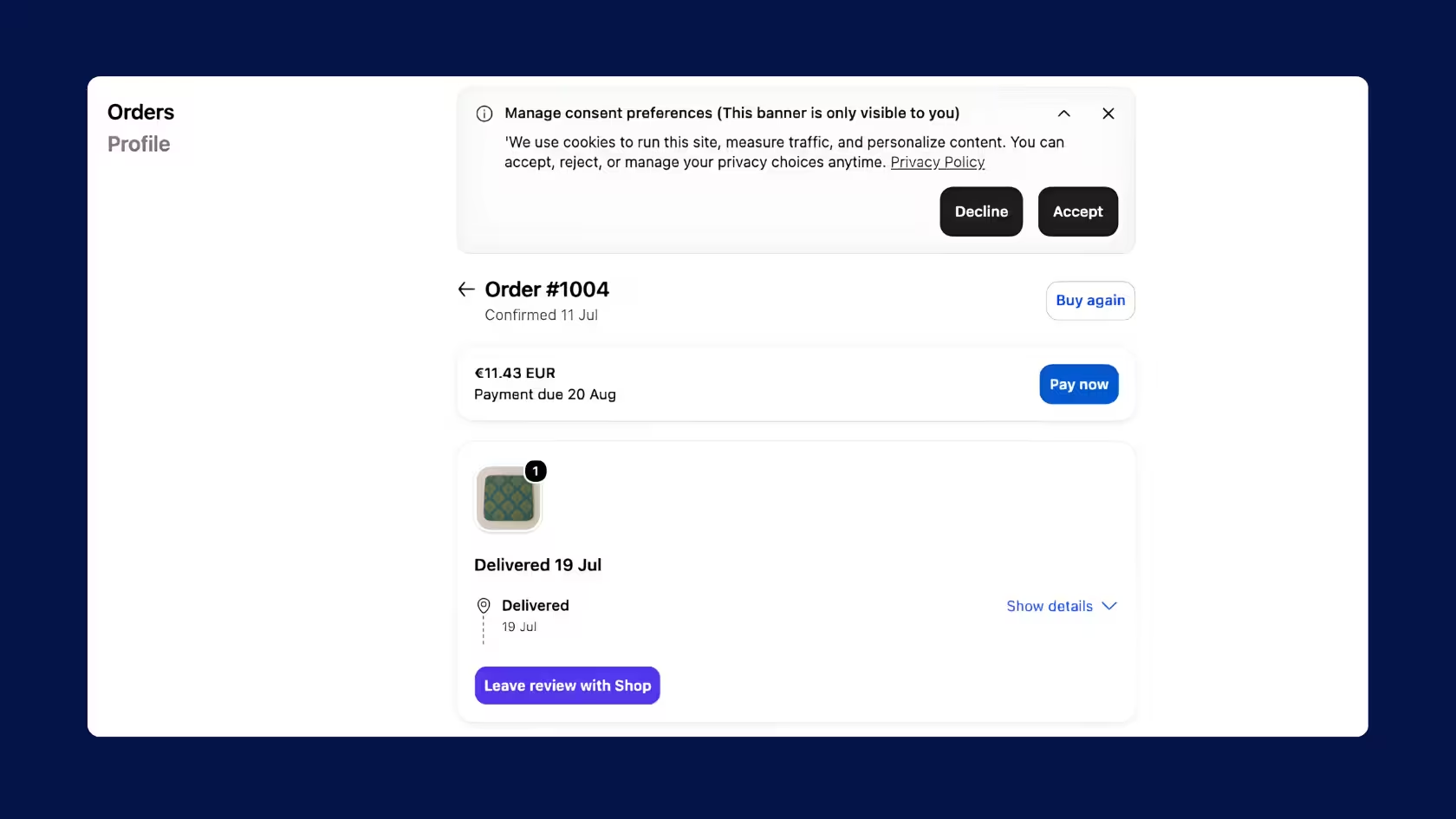
The Customer Accounts Block shows your cookie consent banner directly on Shopify's customer-facing pages, including the login page, account dashboard, and order pages. This means your visitors can manage their consent preferences even inside their Shopify account, keeping you compliant across the entire post-checkout experience.
How to Enable the Customer Accounts Block
If you haven't enabled it yet, here's how to set it up in a few steps:
- In your Consentmo app, go to the Storefront Controls section.
- Find the Customer accounts block card and make sure it is toggled on (it should show a green "Enabled" badge).
- Click Add Consentmo to your Order status page or Checkout. This opens the Shopify editor directly.
- In the editor sidebar, find Consentmo GDPR under Apps, click the + icon next to Customer Accounts Block.
- Click Save in the top right corner.
- Back in Consentmo, click I've added the extension to confirm.
That's all it takes. Your consent banner will now appear on the Order status page for every customer, on every order, including after the August 26 upgrade.
Need Help?
Read our full feature breakdown on Customer Account Extensions here >
If you have any questions about the upgrade or your Consentmo setup, reach out at [email protected] or through the live chat inside the app. We're here to make sure the transition is seamless for you.