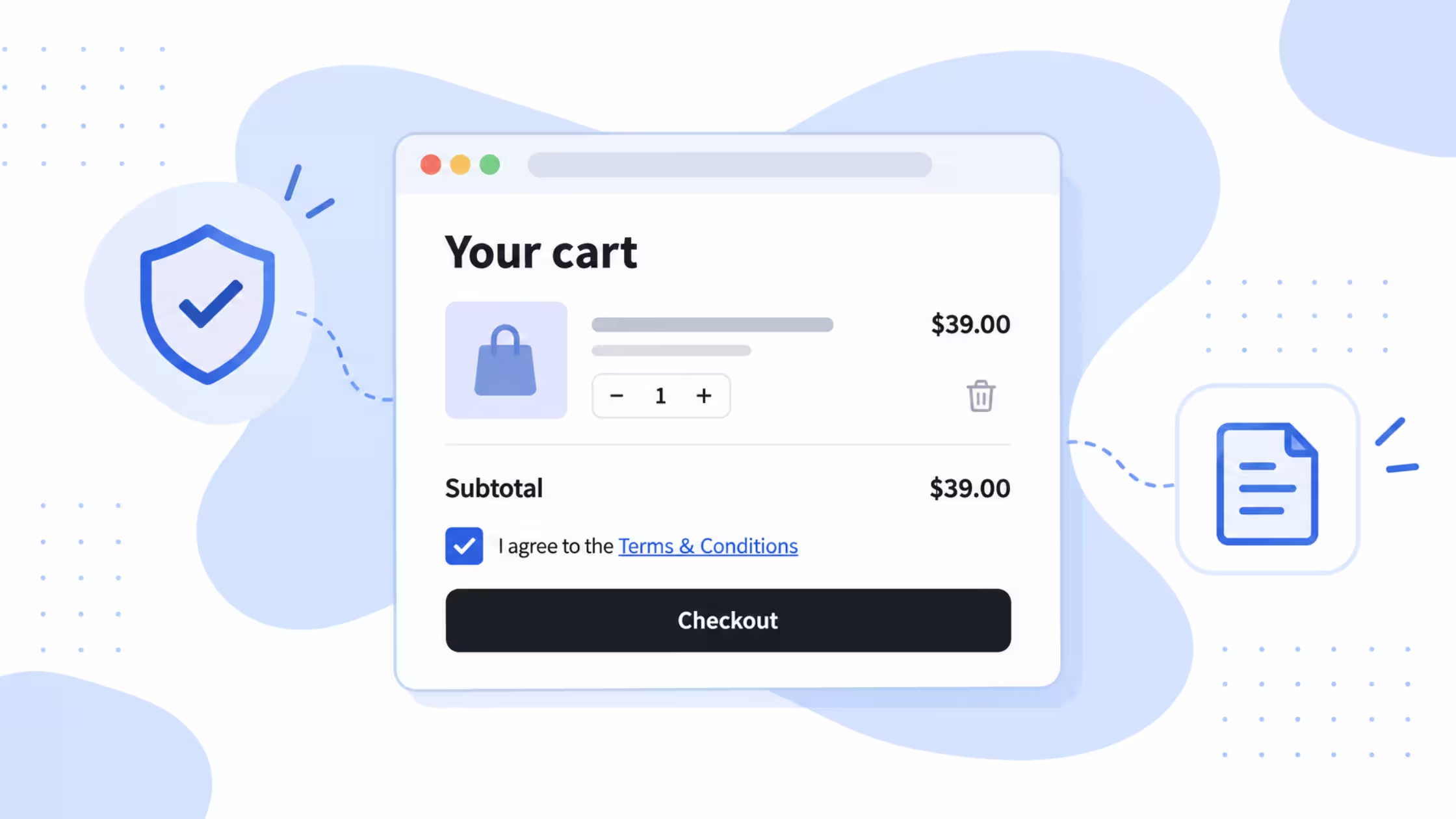
Shoppers often complete a purchase without ever seeing your terms. That leaves you exposed when a dispute, chargeback, or return comes in.
Consentmo now includes a full Terms & Conditions checkbox inside the same app you already use for consent. Mandatory agreement on product page, cart, and cart drawer. Custom design. Multilingual copy. Popup or linked policy. And a proof log when a chargeback shows up.
One less app. One less monthly fee. One less embed fighting your theme.
Location: Consentmo → Age gate & Terms → Terms & Conditions
Available on: Plus and Enterprise plans
TLDR
- You can now add a mandatory "I agree to the Terms & Conditions" checkbox to product page, cart page, and cart drawer
- Link to Shopify Terms of Service or a Custom URL, open in popup or policy page
- Customize message, alert text, colors, and CSS in 5 languages
- Preview on Cart / Alert, Desktop / Mobile before you save
- Every acceptance is logged under Analytics & Reports → Reports → Consent records
Why a checkout checkbox matters
Shopify's default checkout does not force shoppers to accept your terms. For stores that sell age-restricted goods, digital products, subscriptions, or high-value items, that gap matters.
A visible checkbox:
- Confirms the shopper saw your Terms of Service
- Blocks checkout until the box is checked
- Creates a timestamped acceptance record with page, IP, and date
How to enable it
- Open Consentmo
- Go to Age gate & Terms → Terms & Conditions tab
- Click Set up Terms & Conditions
- Configure Setup, Design, and Content
- Click Save
If it was disabled before, you will see a Re-enable Terms & Conditions button. Storefront integration runs through a Shopify app embed. No theme code edit needed.
Setup tab: source, display, and placement
Content source
- Shopify terms of service: Uses the Terms of Service policy from Shopify Settings → Policies
- Custom URL: Paste any other terms page you want to link to
Display mode
- Link to policy page: Opens the full policy page
- Open policy in popup: Shows the policy in a popup so shoppers stay in the purchase flow. Best for conversion.
Where it appears
- Product page: Shows before Add to cart. Adds agreement to every purchase.
- Cart page: Shows above the Check out button. Recommended placement.
- Cart drawer: Shows inside the drawer when your theme supports it.
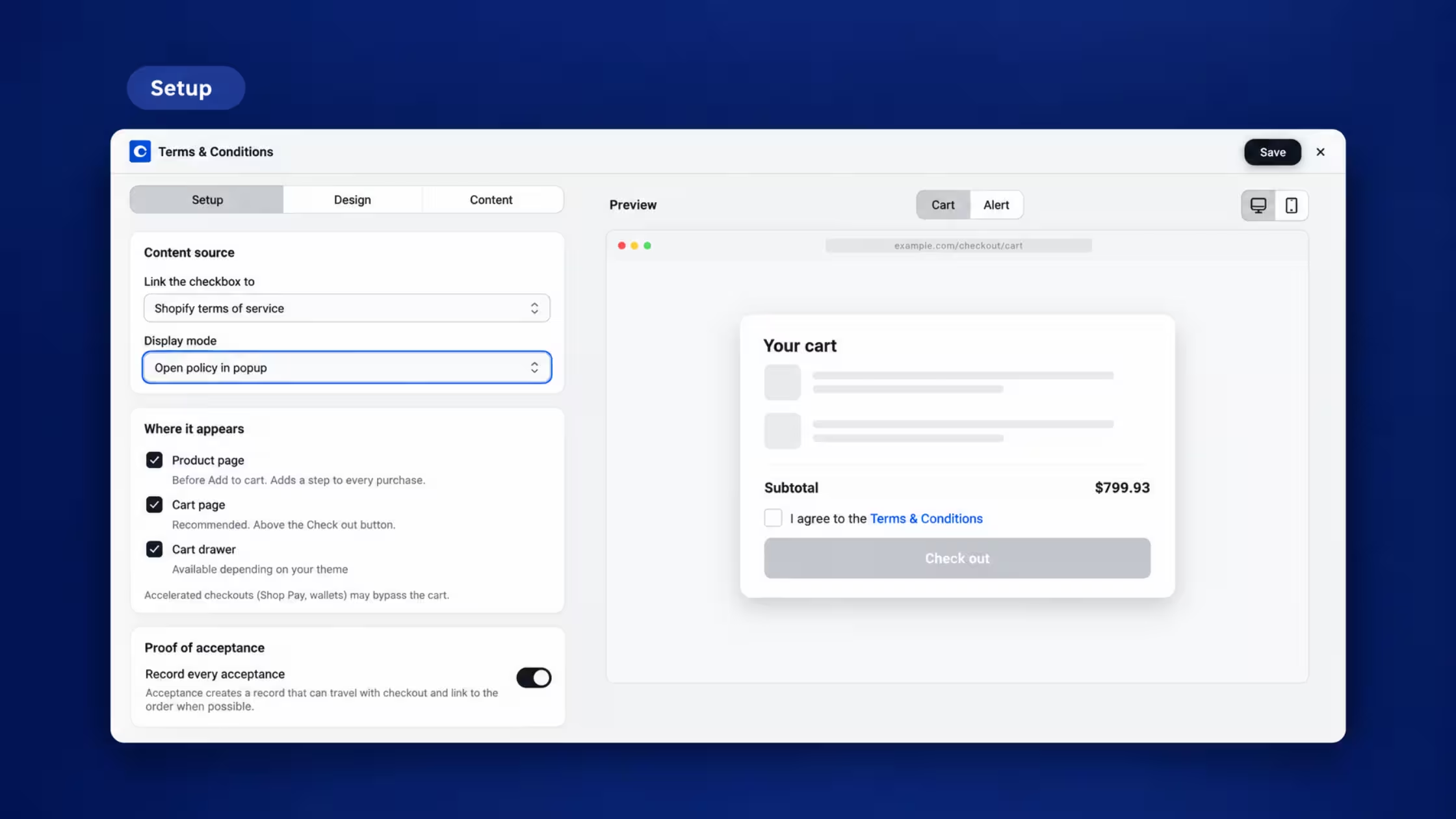
Note: Cart drawer availability depends on your theme. Accelerated checkouts like Shop Pay and wallet buttons may bypass the cart and its checkbox. This is a Shopify limitation, not a Consentmo setting.
Proof of acceptance
Turn on Record every acceptance to log each agreement. The record can travel with checkout and link to the order when possible.
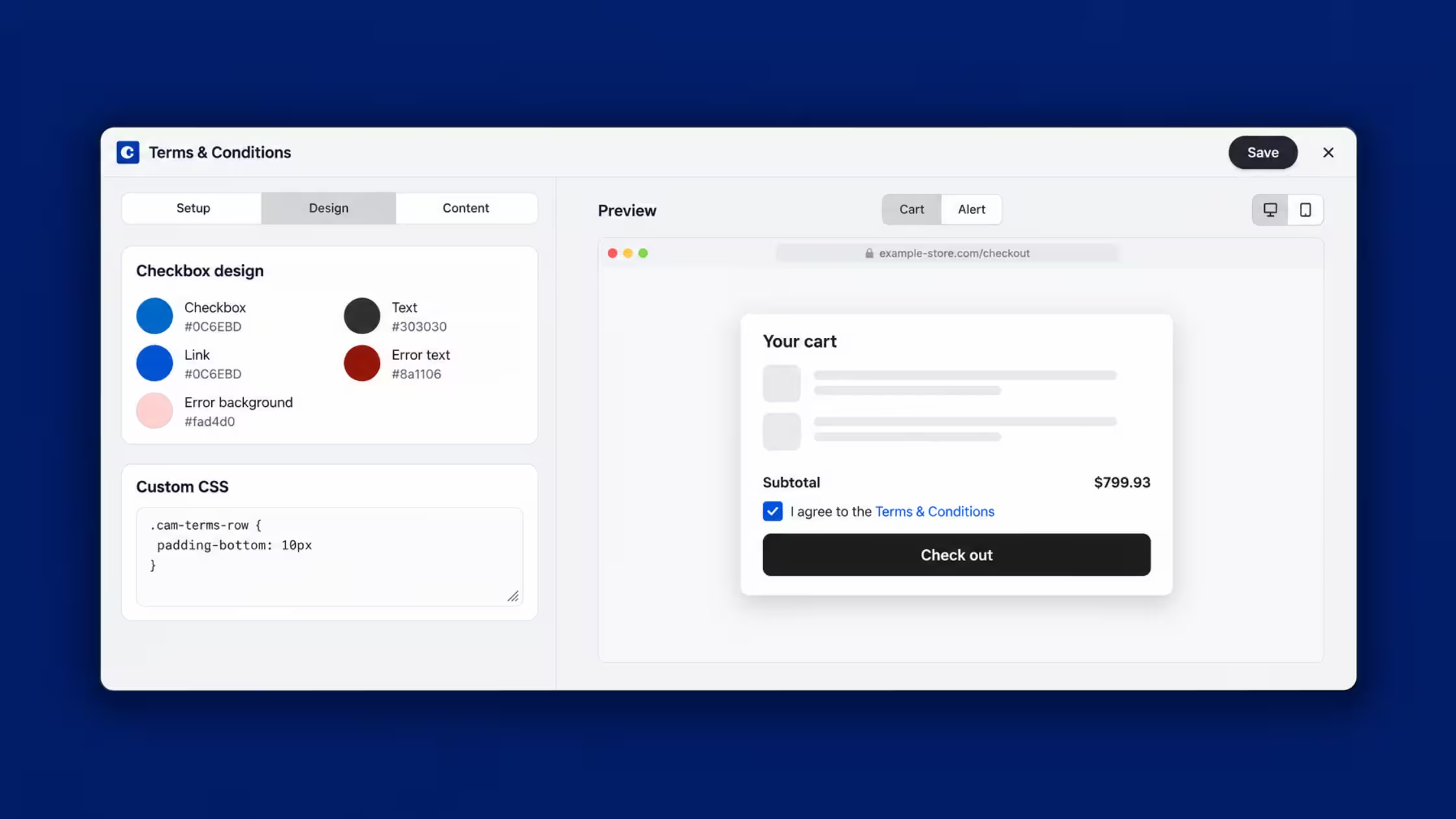
Design tab: match your storefront
- Checkbox: color of the checked box, default #0C6EBD
- Text: color of the agreement sentence
- Link: color of the Terms & Conditions link
- Error text + Error background: validation message styling when a shopper tries to continue without checking
- Custom CSS: for spacing and fine tuning, for example:
Copy.cam-terms-row { padding-bottom: 10px}The live Preview on the right updates as you edit. Switch between Cart and Alert, Desktop and Mobile icons to check both states.
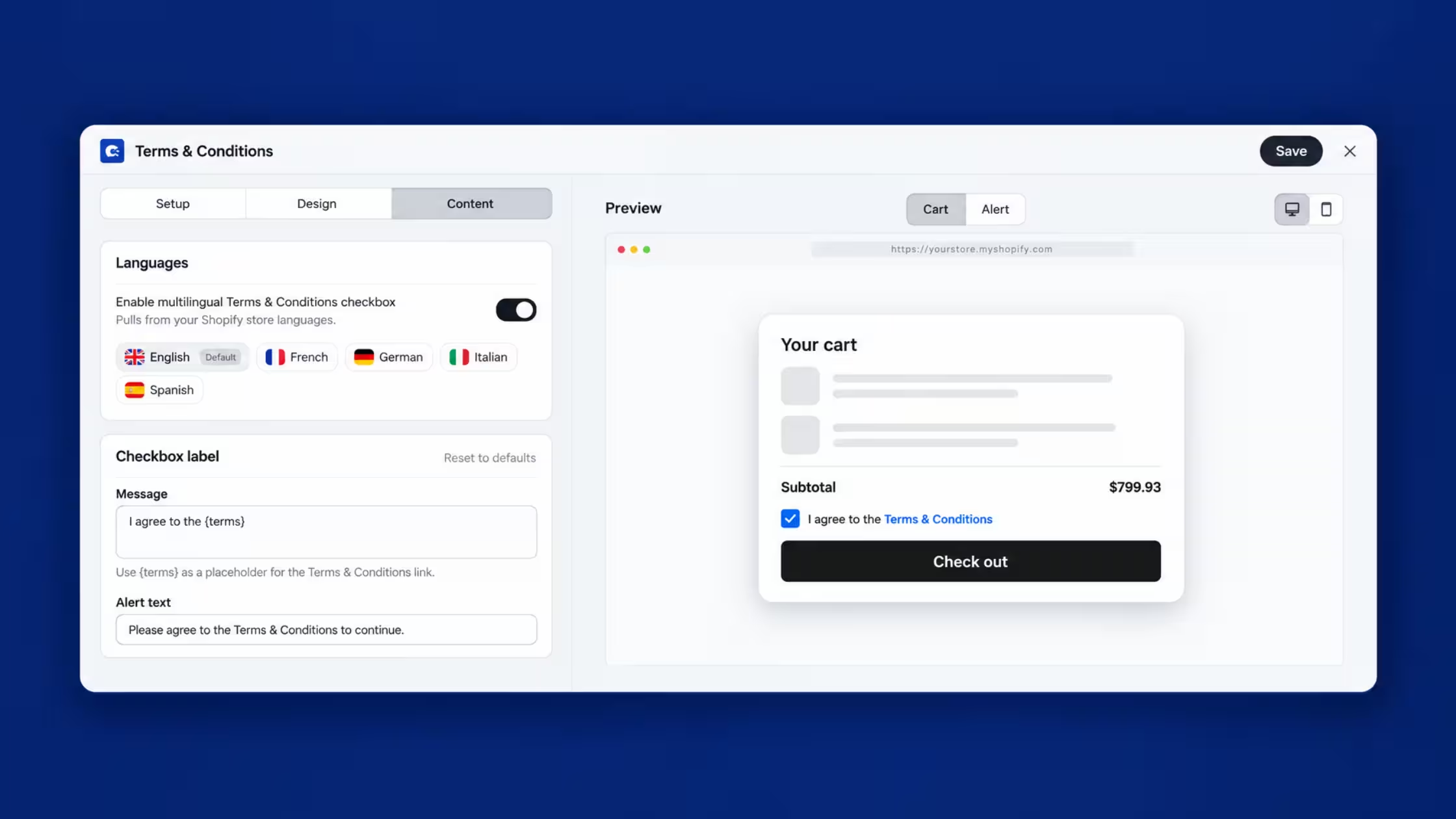
Content tab: language and wording
Languages are pulled from your Shopify store languages. English is marked Default in this example, with French, German, Italian, Spanish ready to customize.
- Message: Default
I agree to the {terms}. Keep{terms}in the text, it renders the clickable link. - Alert text: Default
Please agree to the Terms & Conditions to continue. - Reset to defaults: Restores the original label in one click.
Tip for multilingual stores: open each language, paste your translated message, keep the {terms} placeholder unchanged.
Acceptance records: your proof log
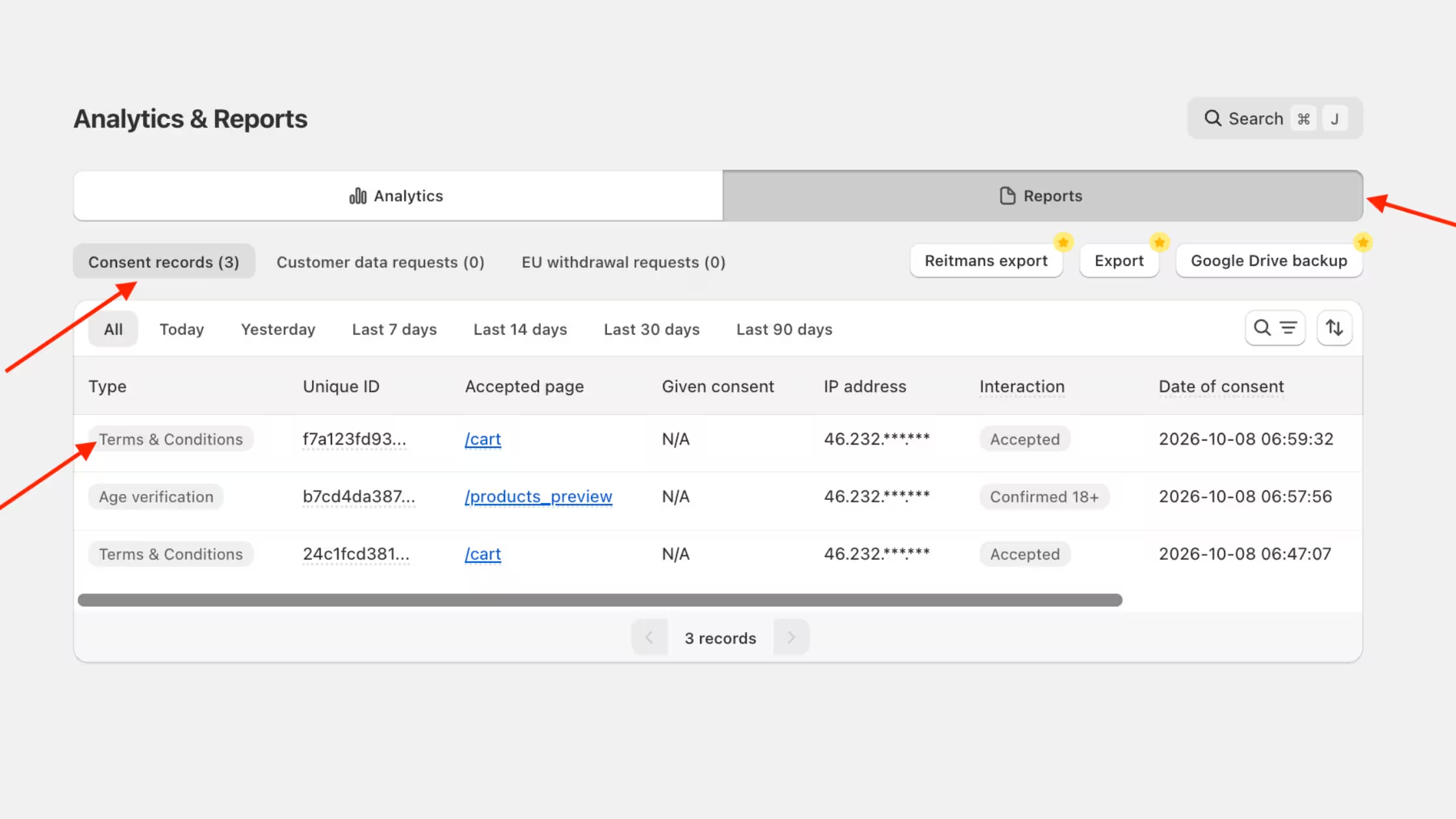
When recording is on, find every agreement here:
Consentmo → Analytics & Reports → Reports → Consent records
Filter by Type = Terms & Conditions.
Each row shows:
- Type: Terms & Conditions
- Unique ID: record identifier
- Accepted page: for example /cart or /products_preview
- Given consent: N/A for this record type
- IP address: partially masked, for example 46.232..*
- Interaction: Accepted
- Date of consent: date + time stamp
- Location and Device: country flag and Desktop / Mobile
Use the date filters Today, Yesterday, Last 7 / 14 / 30 / 90 days, plus search and sort to pull records for a dispute.
Best practice setup for most stores
- Link to Shopify Terms of Service, display as popup
- Enable Cart page + Cart drawer
- Add Product page only if you need agreement before Add to cart
- Keep the alert text short and direct
- Match checkbox and link colors to your theme buttons
- Turn on Record every acceptance before BFCM traffic
Conclusion
Your compliance stack just got lighter.
Cookie consent, tracker blocking, privacy policies, accessibility, age gate, EU withdrawal, and now a Terms & Conditions checkbox, all in Consentmo. You do not need a standalone T&C app cluttering Apps, slowing the theme, or billing you every month for a single checkbox.
Turn it on under Age gate & Terms, match the colors to your storefront, flip on Record every acceptance, and walk into peak season with proof on file and one fewer app on the bill.


_converted.avif)