Connecting Google Consent Mode V2 in Consentmo is only half the job. Themes change, apps add pixels, and hard-coded gtag snippets sneak back into the storefront. When that happens, Google tags can run before visitors give consent, which weakens Consent Mode, muddies analytics, and raises compliance risk.
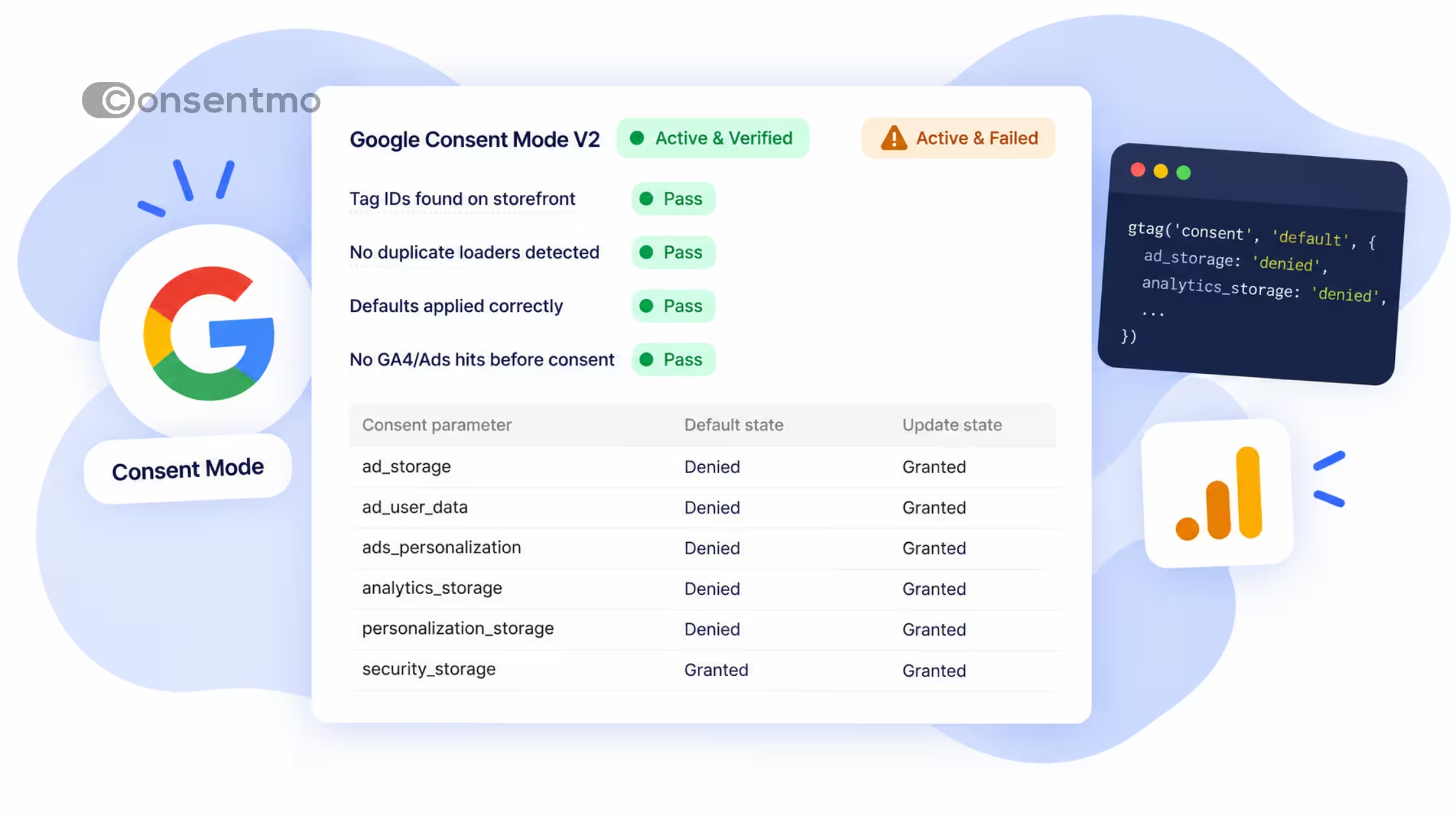
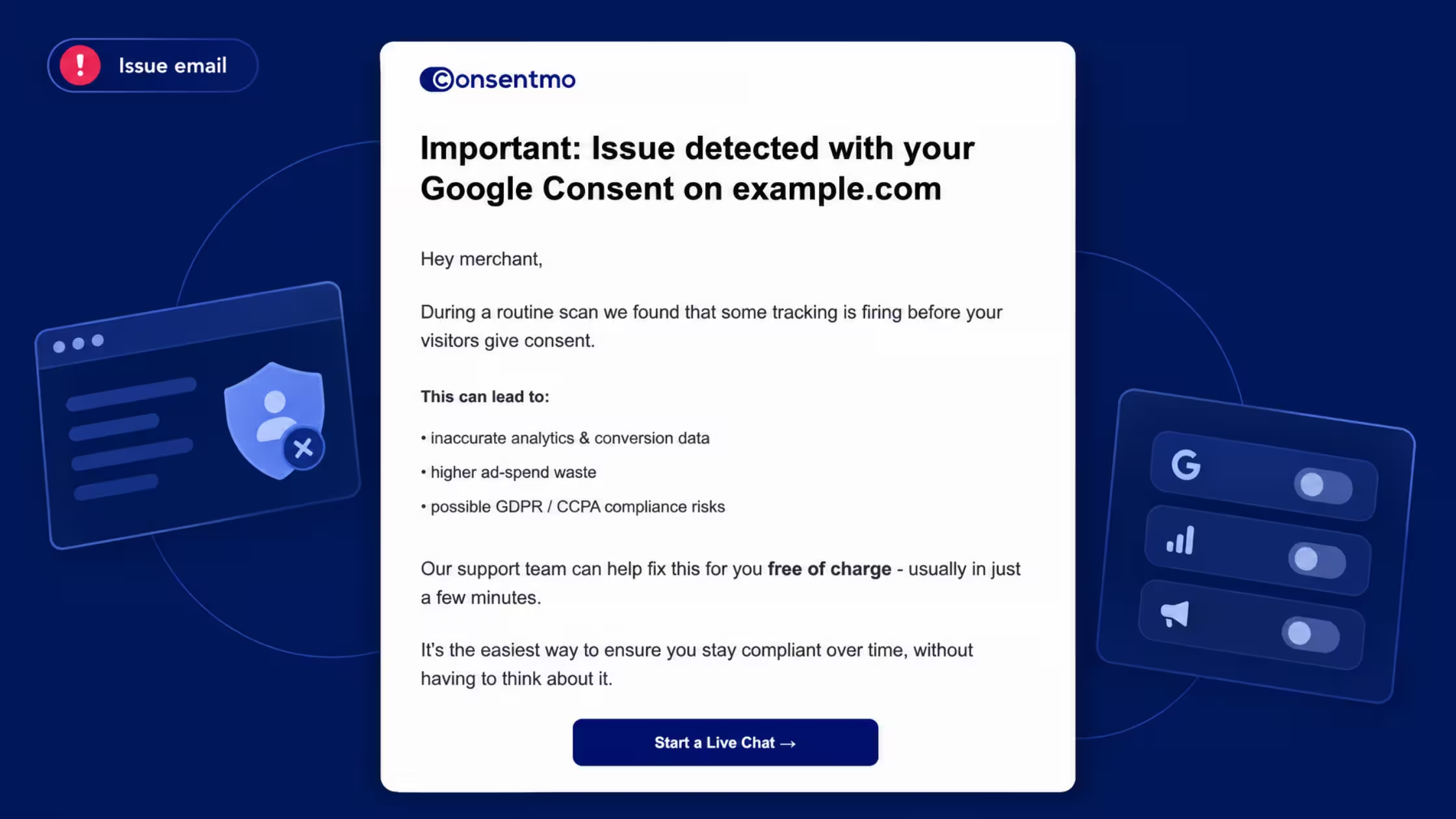
Consentmo’s GCM V2 monitoring is built for that. It runs routine storefront scans on your Google Consent Mode V2 setup, surfaces problems under Core setup (including Active & Failed vs Active & Verified), and can email you when something looks wrong, for example: Important: Issue detected with your Google Consent on [your store].
Those messages are product alerts from monitoring, not generic marketing mail. They point to real issues such as consent defaults not applied, duplicate loaders, or Google tags still loading outside the integration. Support can help fix them free of charge via live chat.
This post explains what the email means, what each Core setup check covers, the most common failures, and how to get back to Active & Verified.
What that “Issue detected” email means
If you use Consentmo’s Google Consent Mode V2 integration, you may receive an email with a subject like Important: Issue detected with your Google Consent on [your store]. That message is not a random marketing blast. It comes from a routine storefront scan that found tracking behavior that can fire before visitors give consent.
The email typically explains that this can lead to:
- Inaccurate analytics and conversion data
- Higher ad-spend waste
- Possible GDPR / CCPA compliance risks
Consentmo support can help fix the setup free of charge, often in a few minutes, via live chat. The goal is ongoing compliance and cleaner measurement, without you re-checking the theme after every app change.
This guide walks through what the email is flagging, what you see under Core setup in the app, common failure modes, and how to get to Active & Verified.
Where to look in Consentmo: Core setup
Open Consentmo → your Google Consent Mode V2 / Core setup area. The integration can show:
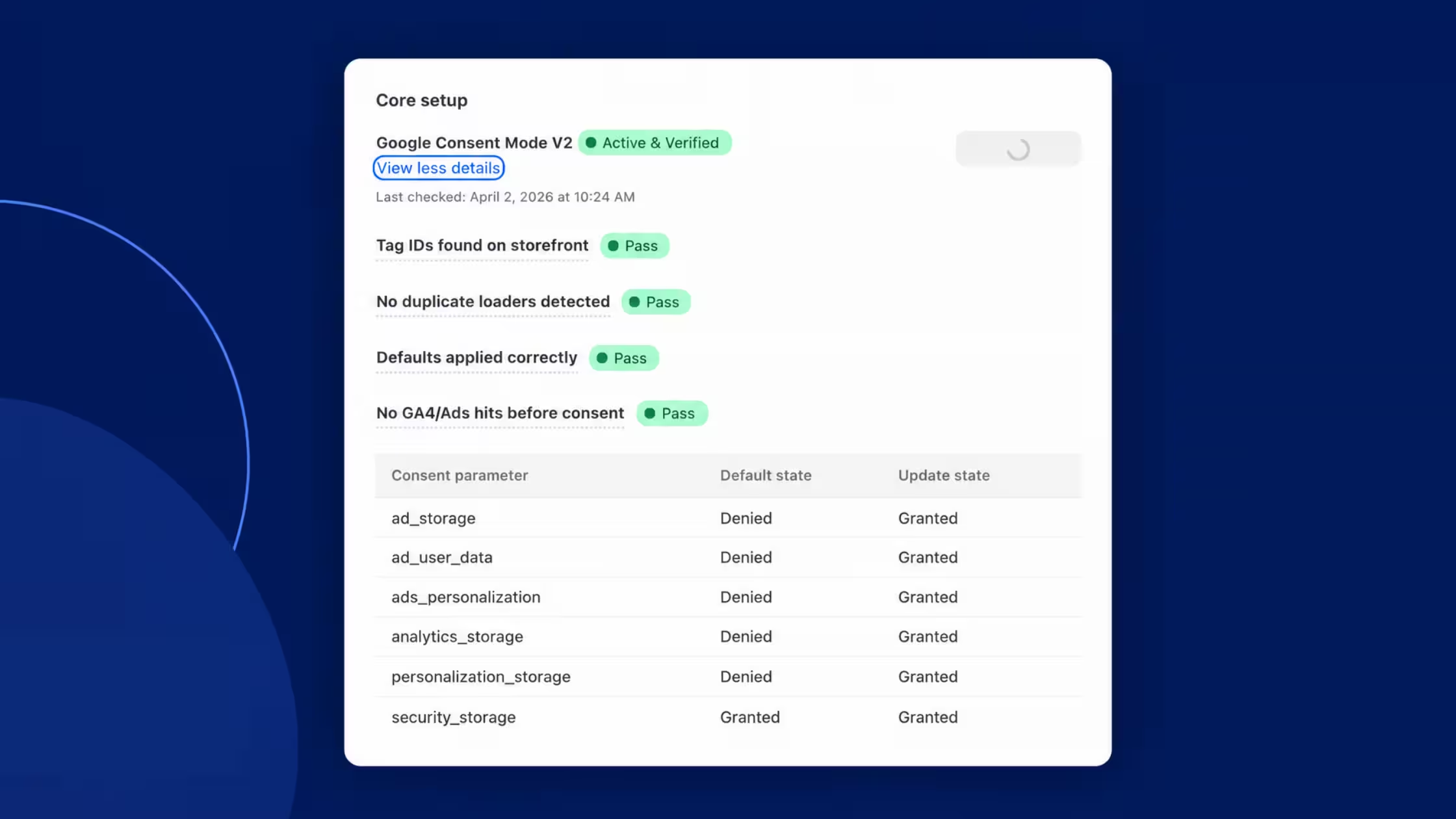
- Active & Verified (green): checks passed on the last scan
- Active & Failed (red/amber): the integration is on, but at least one setup check failed and can distort data
Use Check status to re-run verification. Expand View details to see each check and the consent parameter table.
Checks Consentmo runs
- Tag IDs found on storefront, expected GA4 / Ads / related IDs appear on the live store
- No duplicate loaders detected, gtag/GTM is not double-loaded in a way that breaks consent
- Defaults applied correctly, Google consent parameters are set to Denied (where required) before tags read consent
- No GA4/Ads hits before consent, measurement hits wait for a proper consent state
Below the checks, a table lists consent parameters such as ad_storage, ad_user_data, ads_personalization, analytics_storage, personalization_storage, and security_storage, with default state vs update state (for example Denied → Granted after the visitor accepts).
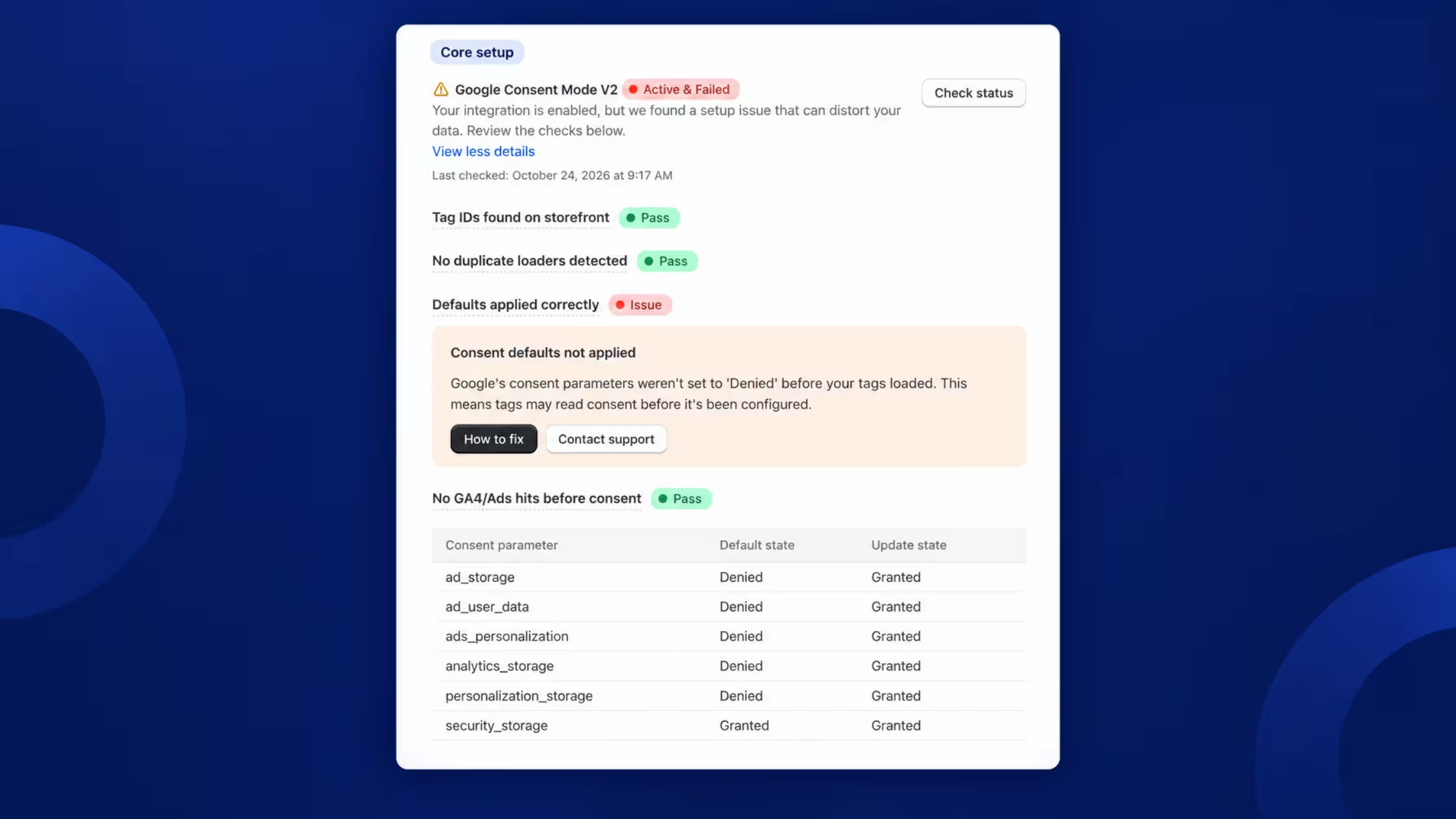
Common issue: Consent defaults not applied
One frequent failure looks like this:
In practice, gtag or GTM starts without a denied default. Tags can assume granted or undefined states too early, which breaks Consent Mode V2 behavior and can send hits that should wait.
In the UI you will see How to fix and Contact support. Support can walk through theme scripts, Shopify Customer Privacy settings, and GTM load order free of charge.
What “good” looks like
When everything is healthy, Core setup shows Active & Verified, all four checks Pass, and the parameter table shows Denied defaults for ad/analytics-related storage with Granted updates after consent (while security_storage may stay Granted).
Common issue: Google tags loaded outside the integration
Core setup may also warn:
We found Google tags loaded outside this integration. They can run before visitors give consent. Remove them so Consentmo loads them instead.
Typical sources:
- Hard-coded gtag snippets in theme.liquid or a custom liquid section
- Shopify additional scripts / pixel helpers that inject GA4 or Google Ads outside Consentmo
- A second GTM container or duplicate GA4 config tag
- An old app that still injects Google tags after you enabled Consentmo’s integration
In Core setup you enter GTM (if used), GA4 IDs, and Google Ads (AW) IDs so Consentmo can manage load order with consent. If the same IDs also load from the theme, you get races: tags fire before defaults and before the banner choice.
_converted.avif)
If GA4 and Google Ads are already fully configured inside GTM, you often only need the GTM container ID in Consentmo and the Consentmo CMP tag in that container (when required by your setup). Avoid parallel hard-coded gtag on the storefront.
Why this matters for measurement and compliance
Measurement. Consent Mode V2 relies on correct default and update signals. If defaults never apply, modeled and observed conversions drift. You may over-count, under-count, or attribute spend to sessions that never consented.
Spend. Ads optimization that trusts early hits can bid on the wrong signals. Cleaning load order often improves the quality of what Google receives after consent.
Compliance. In regions that require opt-in before non-essential tracking, tags that run early create avoidable risk under GDPR-style rules and similar regimes (including CCPA-related expectations around sale/share and signals, depending on your setup). Consentmo’s scan is a practical early warning, not a legal opinion.
What to do when you get the email
- Open the email and note the store name. Confirm you still use Google tags on that shop.
- In Consentmo, open Google Consent Mode V2 / Core setup and click Check status.
- Expand failed checks. Read How to fix for defaults or outside tags.
- Remove duplicate gtag/GTM/theme pixels so Consentmo (and/or a single GTM container) owns Google loading.
- Confirm GTM/GA4/AW IDs in Core setup match the storefront.
- If you use GTM, ensure the Consentmo CMP tag is present when your setup requires it.
- Re-run Check status until you see Active & Verified.
- If anything is unclear, use Contact support or the email’s Start a Live Chat CTA. Setup help for these issues is offered free of charge.
Prevention: keep verified status after theme and app changes
- After installing a new marketing app, re-check Core setup. Many apps inject their own pixels.
- After a theme edit or Shopify Plus checkout customization, run Check status again.
- Prefer one path for Google tags: Consentmo-managed integration or a single well-built GTM container, not both hard-coded and managed.
- Keep the cookie banner published for the regions where you rely on consent before ads/analytics storage.
For full connection steps, see Consentmo’s Google Consent Mode V2 setup guide and the Google Consent Mode V2 integration page.
Conclusion
The Issue detected with your Google Consent email is Consentmo telling you the storefront scan found tracking that can run before consent. In the app, Core setup turns that into concrete checks: tag IDs, duplicate loaders, consent defaults, and pre-consent GA4/Ads hits. The most common failures are missing Denied defaults and Google tags still loading outside the integration.
Remove duplicate loaders, let Consentmo (or one GTM path) own Google tags, re-run Check status, and aim for Active & Verified. If you want a guided fix, start live chat from the email or Contact support inside Core setup free of charge.
Not on Consentmo yet? Install Consentmo and connect Google Consent Mode V2 so banners, defaults, and Google tags stay aligned as your stack changes.


.avif)