


Key Takeaways
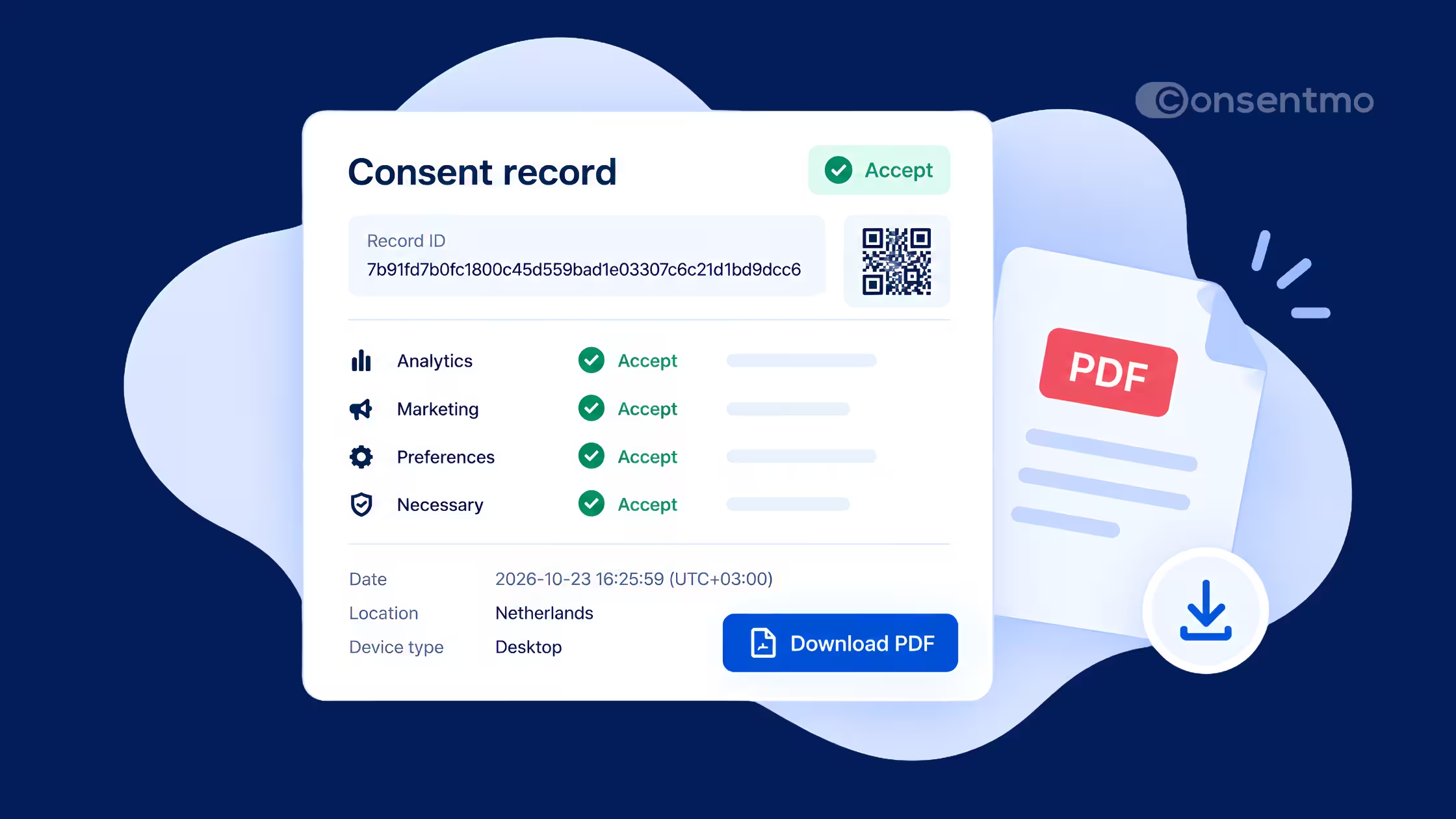
- Proof of Consent gives Shopify merchants a detailed, verifiable record of every cookie consent decision on the storefront. You can show what a visitor agreed to, when they agreed, and which banner version they saw.
- Open Analytics & Reports → Analytics → Consent records. Each banner interaction is stored as its own record with a unique ID.
- From the detail view you can open the full story of that choice and download it as a PDF. The PDF includes a QR code so the document can be checked later.
- You can filter by date range (All, Today, Yesterday, Last 7, 14, 30, or 90 days), then search, filter, and sort to find a specific event.
- On Plus and above, bulk export and Google Drive backup keep copies outside the app.
- Records are created only when a visitor actually interacts with the banner.
- Proof of Consent is documentation of consent. It is not legal advice and it is not a guarantee of compliance.
Why proof of consent matters
When someone asks whether your store collected valid cookie consent, “we have a banner” is rarely enough. Auditors, partners, and sometimes customers want to know what that person saw, what they clicked, and whether non-essential cookies stayed blocked until they chose. Without a durable record, you are left reconstructing the story from memory, theme history, or incomplete analytics.
Proof of Consent is built for that gap. Instead of a single counter or a vague log line, Consentmo stores each interaction as an individual record you can open, explain, and hand over. The goal is practical evidence: a unique ID, a clear interaction, a timestamp with timezone, category-level consent, and a snapshot of the banner that was live when the decision happened.
That matters on Shopify because storefronts change constantly. You update banner copy for a new market, switch layout, adjust the consent model, or publish a new policy link. Old visits still need to reflect the experience those visitors actually had. Proof of Consent freezes that moment so later design work does not rewrite yesterday’s evidence.
Where to find it
Proof of Consent lives in the analytics area of the app.
Analytics & Reports → Analytics → Consent records → Click on consent record
From the list you can:
- browse every logged banner interaction
- open a record by its unique ID
- download a single record as PDF
- export or back up records in bulk
The list view is your working index of logged consents. From there you browse interactions, open any row by its unique ID, download a single PDF when you need a portable proof file, and, on eligible plans, export or back up many records at once. Once the cookie banner is live and visitors start clicking Accept, Reject, or Preferences, new rows appear here automatically. There is no separate “turn on logging” switch beyond having the banner enabled on the storefront.
What each consent record contains
Every record is organized so you can answer three questions quickly: what did they choose, where were they when they chose, and what banner did they see?
Header
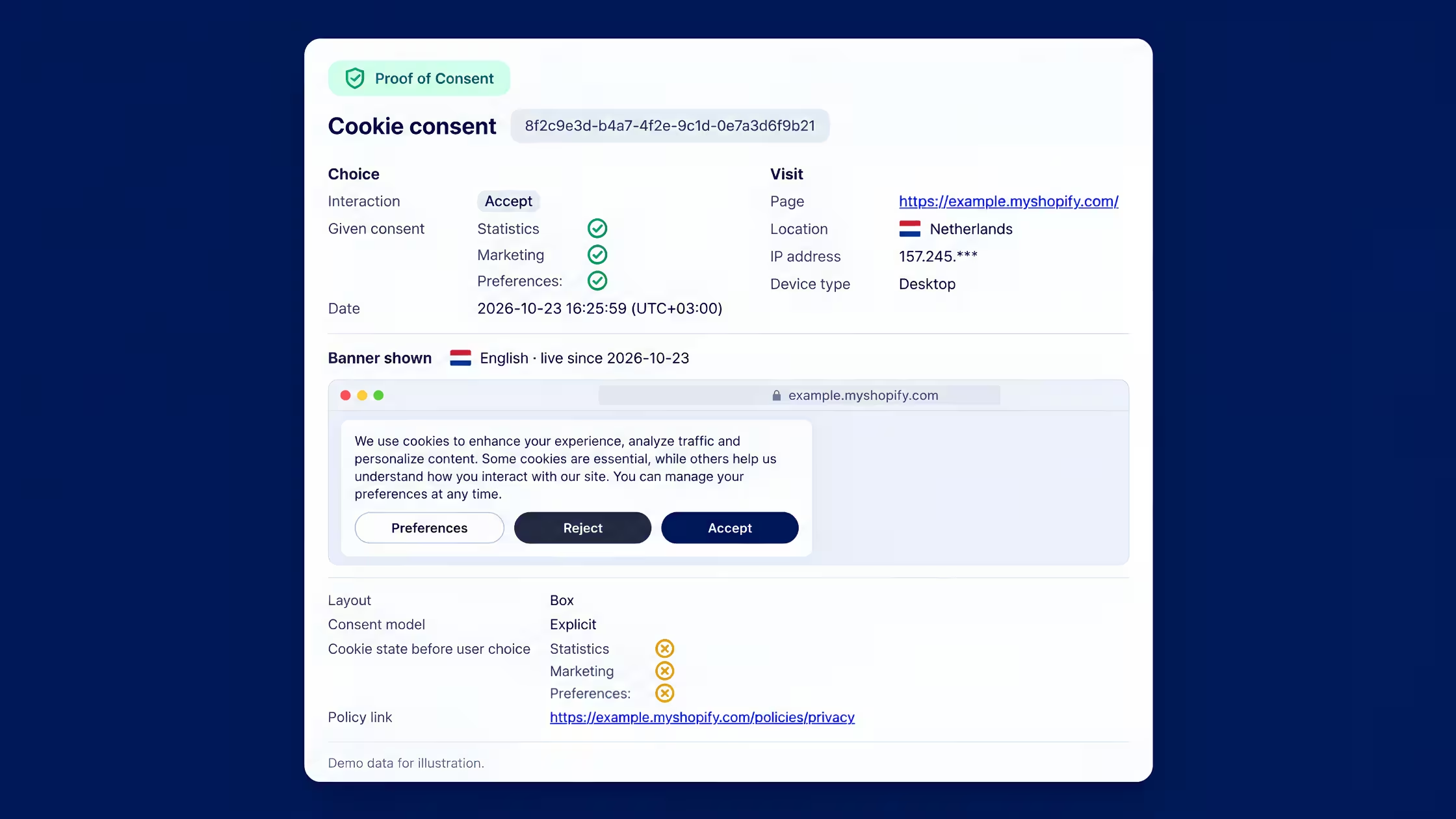
The header labels the record type, for example Cookie consent, and assigns a unique ID. That ID is the stable handle for the event. Use it when you share a case internally, attach evidence to a support ticket, or match a PDF back to the in-app row.
Choice
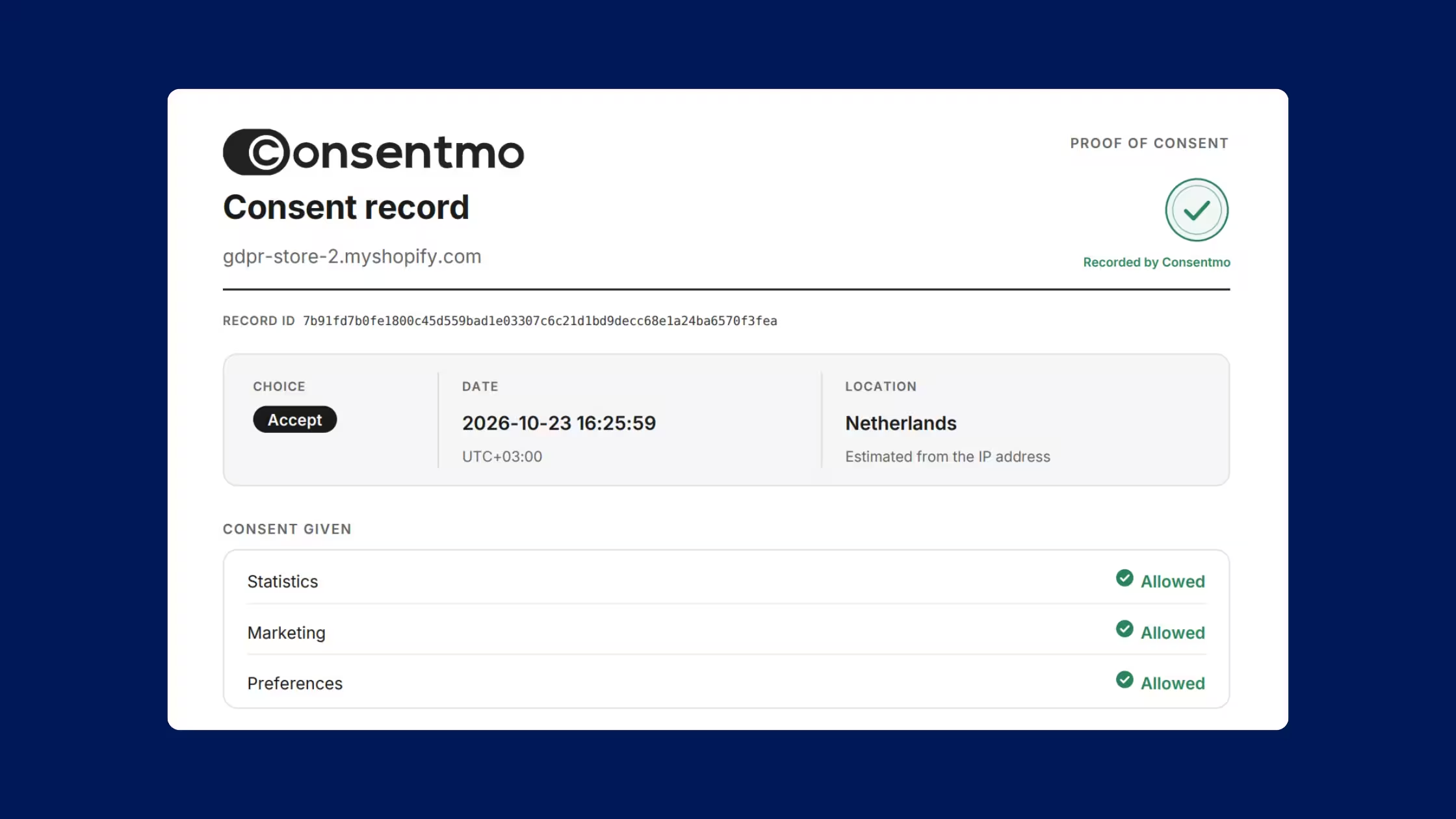
The choice block is the heart of the proof. Interaction records the action on the banner: Accept, Reject, or Preferences. Given consent breaks the decision down by category so you see whether Statistics, Marketing, and Preferences were accepted or declined, rather than a single opaque yes. Date stores the moment of consent with timezone, which keeps multi-region stores readable when your team reviews logs from different offices.
In plain terms, Accept means the visitor accepted all cookie categories. Reject means they declined all non-essential categories. Preferences means they saved a custom mix. That distinction is often what legal or compliance reviewers care about when the question is not only “did they click something?” but “what exactly did they allow?”
Visit
The visit block places the decision in context without over-collecting personal data. Page is the URL where consent was given, so you can see whether the choice happened on the homepage, a product page, or another template. Location is stored at country level only. IP address appears in masked form, for example 157.245.***, not as a full address. Device type notes desktop or mobile so you can relate the choice to the experience people actually used.
This balance is intentional. You get enough operational and audit context to explain the event, while the record avoids holding a complete IP.
Banner shown
The banner block is what turns a click log into proof of disclosure.
- It stores the language shown and the live date of that banner version, plus a banner preview of the text and buttons the visitor saw.
- Layout (for example Box) and consent model (for example Explicit) capture how the UI was configured.
- Cookie state before user choice shows which categories were active before the visitor acted, which helps demonstrate that non-essential cookies were not free to run until consent.
- Policy link records the privacy policy URL displayed on the banner at that time.
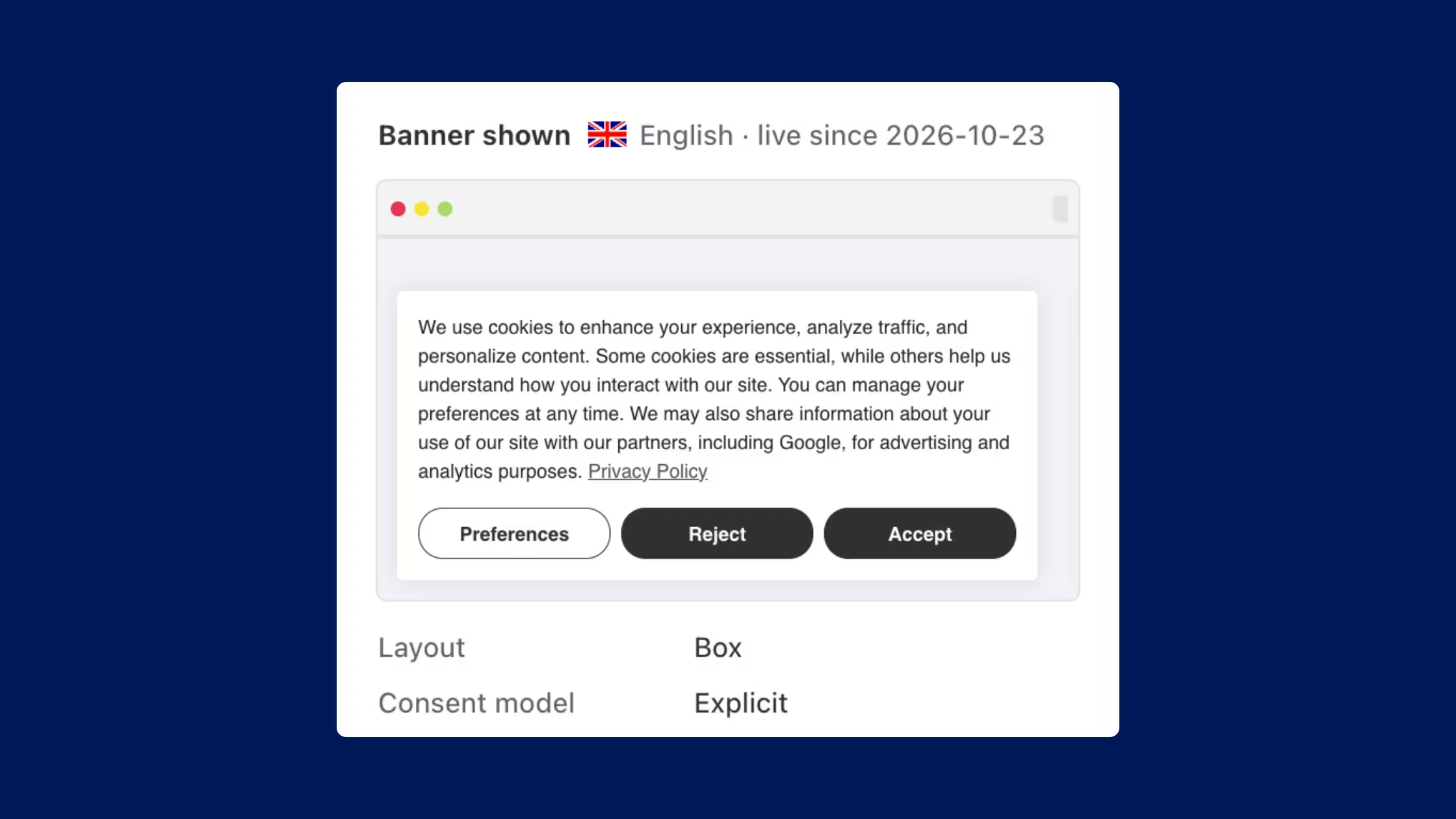
Because the snapshot is tied to the version that was live when consent happened, later rewrites of banner copy or layout do not alter historical records. If you redesign the banner next month, last month’s PDFs still show what those visitors saw.
Core benefits in practice
Verifiable consent evidence starts with identity and time. Each record carries a unique consent ID, the exact interaction, and a timestamp with timezone. When a regulator, payment partner, or marketplace asks for proof, you can open one event and show a concrete decision instead of a general statement that “consent is collected.”
Granular consent breakdown makes the decision usable. Category-level accept and decline for Statistics, Marketing, and Preferences supports questions about advertising pixels, analytics tools, and preference storage. A single boolean would hide that detail. Proof of Consent keeps it visible.
Banner snapshot protects you against “moving target” arguments. Stores iterate on wording, languages, and button sets. The record keeps the banner as presented at consent time, including text, buttons, language, and the date that version went live. You can show what information was on screen when the visitor chose.
Configuration context adds the compliance-relevant setup around that UI. Layout and consent model describe how choice was offered. Cookie state before the choice helps show that non-essential categories were not already running as if consent had been given. That context is often as important as the click itself.
Visit context answers where and how the decision happened: page, country, masked IP, and device. Teams use this when reconciling a complaint, matching a support email to a session window, or checking whether an issue is concentrated on mobile templates or a specific landing page.
PDF download turns the in-app record into a file you can attach to an audit pack, dispute thread, or data subject request workflow. Scanning the QR code on the PDF supports verification of that document. For day-to-day work, download the one record you need rather than exporting everything.
Export and backup cover longer retention and offline process needs. On Plus and higher, bulk export lets you pull many records for internal archives or external counsel. Google Drive backup keeps an ongoing copy outside the app so evidence is not locked to a single admin session.
Important notes
Consent records are created only when a visitor interacts with the cookie banner. If the banner never loads, or the visitor leaves without Accept, Reject, or Preferences, there is no interaction to store. Enabling and testing the live banner is the foundation.
Privacy boundaries are built into the visit fields. IP addresses are stored masked, not in full. Location is country level only. That keeps the proof useful for audits while limiting how much network identity you retain in the consent archive.
Banner history is versioned by design. The snapshot reflects the banner that was live at consent time. Editing design or text afterward improves the future experience; it does not rewrite past records. If you need to explain an older case, open that record or its PDF rather than assuming the current banner matches what the visitor saw.
Finally, treat Proof of Consent as documentation of consent decisions. It supports your compliance process with structured evidence. It does not replace legal advice, and it is not a guarantee that every regulatory standard is met for every market. Bulk export and Google Drive backup require the Plus plan or higher.
How to use Proof of Consent step by step
- Enable the cookie banner Keep the banner live on the storefront. Consent records collect automatically when visitors interact with it.
- Open Consent records Go to Analytics & Reports → Analytics → Consent records. You will see type, unique ID, accepted page, given consent, IP (masked), interaction, and date.
- Find a record Use date filters (Today, Yesterday, Last 7 / 14 / 30 / 90 days), plus search, filter, and sort.
- Review full detail Click the unique ID. Check the visitor’s choice, visit details, and the banner shown (layout, consent model, cookie state before choice, policy link).
- Download proof Use Download PDF for that record.
- Export or back up Use Export for a bulk file, or set up Google Drive backup for an ongoing copy outside the app (Plus and above).
How this fits with the rest of Consentmo
Proof of Consent sits next to the tools that shape and monitor the banner experience.
Used together, you get both operational control and an evidence trail. Scans and policies keep the storefront honest going forward. Proof of Consent preserves the decisions already made so you can explain them later.
Getting started
- Confirm the cookie banner is enabled and visible on the storefront
- Open Analytics & Reports → Consent records after real interactions appear
- Open one Accept, one Reject, and one Preferences record to learn the detail view
- Download a sample PDF and store it with your compliance folder
- On Plus or above, turn on bulk export or Google Drive backup if you need off-app copies


.avif)