Peak BFCM traffic will find every weak spot on your store. The good news: you can still fix most of them in the quieter weeks before spend and organic traffic climb.
New sale apps, pixels, landing pages, and theme edits usually land in the same short window. Each one can change cookies, consent signals, analytics, and what shoppers actually see on mobile.
Use this as one practical pre-launch pass. Most of it is consent, tracking, and storefront readiness with Consentmo. If you run more than one Shopify store, there is a multi-store section with Copify so catalogs and themes stay aligned when things get busy.
1. Scan for new cookies and trackers
BFCM stacks change fast. Affiliate pixels, review widgets, popup tools, bundle apps, gift messaging, Meta and Google tags, and landing-page builders each add scripts. Some drop cookies only after a shopper opens a promo modal or hits a sale collection.
What to do
- Install and configure the final BFCM app and pixel stack first.
- Run the Consentmo Cookie Scanner on the live theme (or a preview that matches production scripts).
- Review new or reclassified cookies against your categories and purposes.
- Update the cookie list and policy text so the preferences center matches reality.
- Schedule a follow-up scan after the last integration goes live, not only after the first one.
A scanner run before the stack is final undercounts trackers. A scanner run after the stack is final is the one that matters for BFCM.
2. Test Accept, Reject, and Preferences
Policy text is not enough. Shoppers hit the real storefront on phones, tablets, and desktops. Consent must change what actually loads.
On the storefront, verify
- Accept all allows Analytics and Marketing scripts that you intend to fire after consent.
- Reject all (or equivalent essential-only path) blocks non-essential trackers.
- Preferences lets shoppers toggle categories and saves the choice on return visits.
- The banner and preferences UI stay usable on mobile: buttons tappable, text readable, no blocked checkout CTA under the bar. See Consentmo’s notes on the mobile cookie bar experience.
Test major regions separately
EU/EEA, UK, and US states with opt-out or notice rules often need different banner layouts and defaults. Use location preview or VPN/geo tools so you see the same experience a shopper in that market sees. Pair this with geotargeting setup covered in US state consent configuration.
3. Check your campaign tracking
BFCM budgets sit on measurement. Consent changes which tags fire and how Google models conversions. If you only test “pixel present in the theme,” you miss the consent path.
Cover at least
- GA4 tags and key events
- Google Ads conversion and remarketing tags
- Meta Pixel (and CAPI if you use it) under consent
- Other paid or affiliate pixels in the BFCM mix
Google Consent Mode
Confirm Consent Mode is active and that consent updates move ad_storage, analytics_storage, and related signals as designed. Consentmo’s Advanced Consent Mode guide and Consent Mode integration update walk through the Shopify-side setup.
Practical tests
- Fresh browser profile, Accept path: tags fire; DebugView / Tag Assistant / Meta Pixel Helper show expected hits.
- Fresh profile, Reject path: non-essential tags stay blocked; modeled or cookieless behavior matches your Consent Mode configuration.
- UTM and campaign landing URLs still resolve after theme and redirect changes.
- Verify it yourself in five steps:
- Open your store in a private window.
- Open DevTools and go to Application, then Cookies.
- Watch
_shopify_swhile the banner is open. - Click Reject.
- Confirm the
_shopify_svalue does not change.
4. Double check your highest-traffic pages
Most BFCM sessions concentrate on a small set of URLs. Test those like production, not like a quiet Tuesday.
Priority surfaces
- Homepage and global promo bar
- BFCM landing pages and collection templates
- Top product detail pages (PDPs)
- Cart, checkout entry, and upsell/cross-sell modules
On each surface, check
- Banner and age gate (if used) do not trap focus or cover primary CTAs
- Consent reload does not break add-to-cart or variant selectors
- Images, timers, and app blocks load without layout shift that hides price or buy buttons
- Accessibility basics: contrast on sale badges, keyboard path to Accept/Reject, labels on icon-only controls
- Mobile: thumb reach, sticky bars stacking with the cookie bar, and horizontal overflow
If you sell age-restricted goods, confirm Age Gate still sits correctly above sale creatives.
5. If you run multiple Shopify stores, keep them in sync
Running BFCM across more than one Shopify store adds another pre-launch risk: a correct change on the main store can still fail if regional or brand stores lag on products, inventory, pricing, content, or theme.
Manual copy-paste across storefronts is where promo SKUs go missing, prices diverge, and a theme hotfix ships on one market only.
Our agency partner MindArc developed Copify Multi Store Sync for merchants who manage multiple Shopify stores. Copify can sync products, inventory, orders, customers, content, and themes between connected stores. It also supports theme deployments, scheduled backups, and rollbacks, with history so teams can see what moved and when.
BFCM multi-store checks
- Confirm promotional products and collections match across stores.
- Check inventory and pricing before campaigns start.
- Confirm the correct theme version is deployed everywhere you sell.
- Take a backup before major BFCM theme or catalog changes.
- Keep a short record of what changed, on which store, and when.
The fewer manual repeats your team runs during peak traffic, the easier it is to keep every storefront consistent while paid and organic traffic climb.
6. Check your privacy experience by market
BFCM traffic is multi-region even when your warehouse is not. Banner copy, button set, and defaults should match the rules you claim to follow.
Walk through
- EU/EEA and UK: clear Accept and Reject (or equivalent), granular preferences, non-essential blocked until consent where required.
- US: notice and opt-out patterns where you target California and other state regimes; state-level geotargeting if you use it.
- Other markets you advertise into: language, currency, and privacy links that match the market switcher.
Confirm geotargeting rules, regional banner variants, and privacy policy links from the footer and the banner. A sale landing page that strips the footer can quietly remove the only privacy link shoppers see.
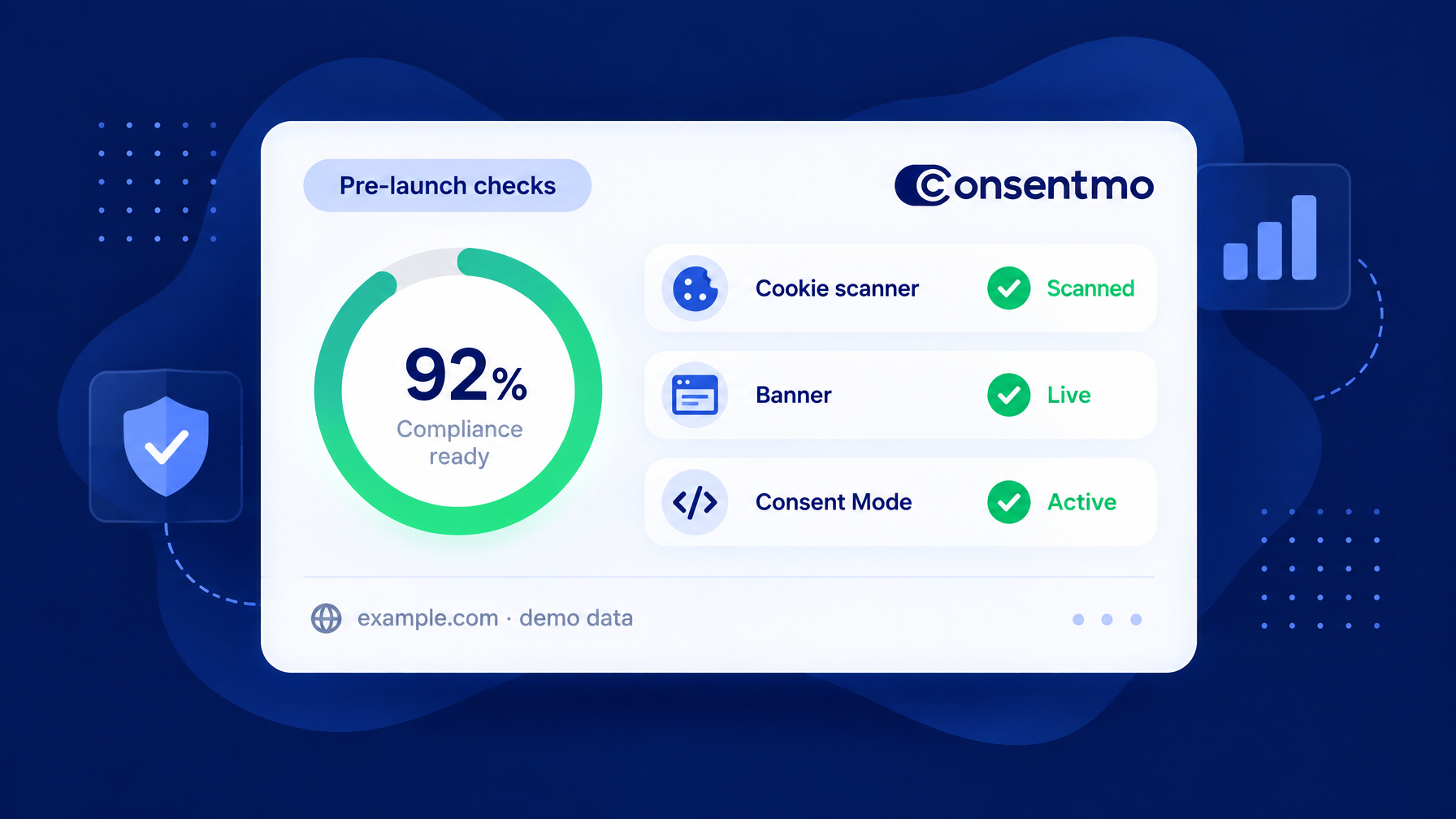
For a broader compliance pass outside peak season, keep an eye on your Compliance Score at all times.
Final pre-launch check
Reserve one calm block the day before major spend or the Friday open. No new apps in that window unless something is broken.
Final pass
- Compliance Score: open the score, fix anything still red or yellow that you can resolve before traffic.
- Cookie Scanner: one last scan on the production theme with the final BFCM stack.
- Live banner: Accept, Reject, Preferences on homepage, top PDP, and main BFCM landing page, mobile first.
- Tracking: Tag Assistant / debug tools on Accept and Reject paths for GA4, Ads, and Meta.
- Campaign URLs: click every major ad and email link; confirm UTM, discounts, and landing templates.
- Multi-store (if applicable): spot-check promo SKU, price, and theme version on each live store.
Optional: turn on or confirm bot filtering in consent analytics so peak-week consent rates stay readable. See exclude bot traffic from cookie banner analytics.
Quick reference table
Conclusion
Creative and discounts matter. So does the boring pre-flight work that keeps the store stable when traffic spikes.
Scan the real cookie footprint. Prove Accept and Reject on the live storefront. Check campaign measurement under Consent Mode. Pressure-test the pages that will take the hits. Keep multi-store catalogs aligned if you run more than one shop. Match privacy UX to each market. Then close with Compliance Score, a final scanner run, the live banner, tracking, and your campaign URLs.
Want that consent and tracking layer in one Shopify-native place? Start with Consentmo on the Shopify App Store.
Running several stores? Review Copify Multi Store Sync for catalog, theme, and backup workflows before the rush.